Documentation Connections
Connect Cloudflare
Publish generated websites into your own Cloudflare account. What to create, which single permission the token needs, and how to check that it worked.
Opportunora publishes every website into your Cloudflare account, not ours. That is deliberate: the sites outlive your relationship with this app, the hosting bill is yours, and handing a client their site is transferring a project rather than migrating a host. The app only ever holds a scoped token, and disconnecting it leaves every published site online.
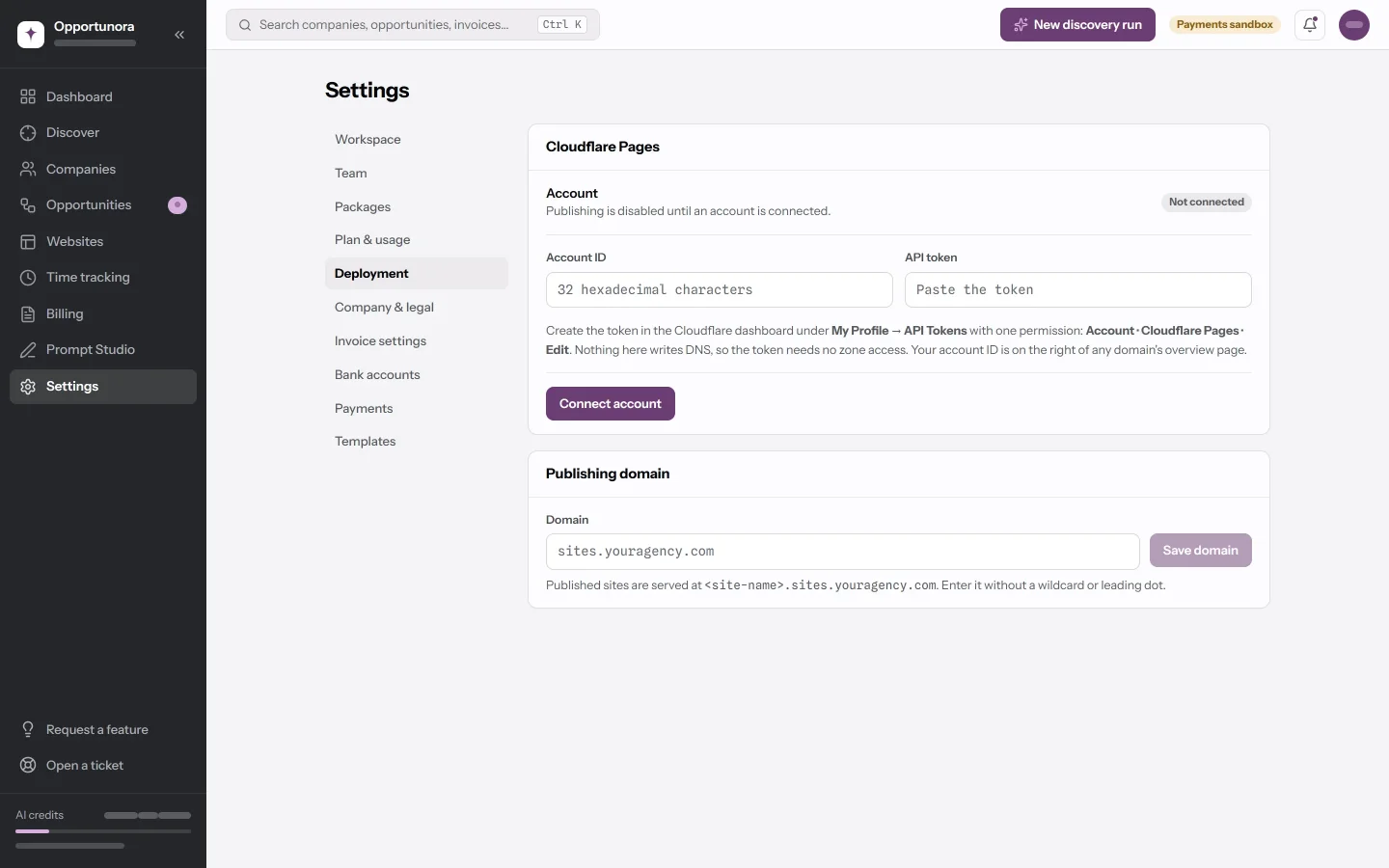
Until you do this, publishing is off. Approve & publish on the Websites screen opens a dialog that refuses with No Cloudflare account is connected. Open Settings → Deployment.
What you need
- A Cloudflare account. The free plan is enough.
- Your account ID — 32 hexadecimal characters.
- An API token with exactly one permission.
You do not have to buy a domain from Cloudflare, and you do not have to move your DNS to Cloudflare. The app writes no DNS records at all and asks for no zone access. Pointing a domain at the published sites is the next chapter, Connect your own domain.
Only an Admin can connect or disconnect an account. Any role can open the tab and press Test connection.
1. Find your account ID
Sign in at dash.cloudflare.com. Open any domain
in the account and the Account ID is in the right-hand column of its
overview page. With no domain in the account yet, open Workers & Pages and
read it out of the address bar: it is the 32-character string between
/accounts/ and the next slash.
It looks like 9a7b1c0d2e3f4a5b6c7d8e9f0a1b2c3d. No dashes, no spaces. The app
rejects anything else with A Cloudflare account ID is 32 hexadecimal
characters before it calls Cloudflare at all.
2. Create the API token
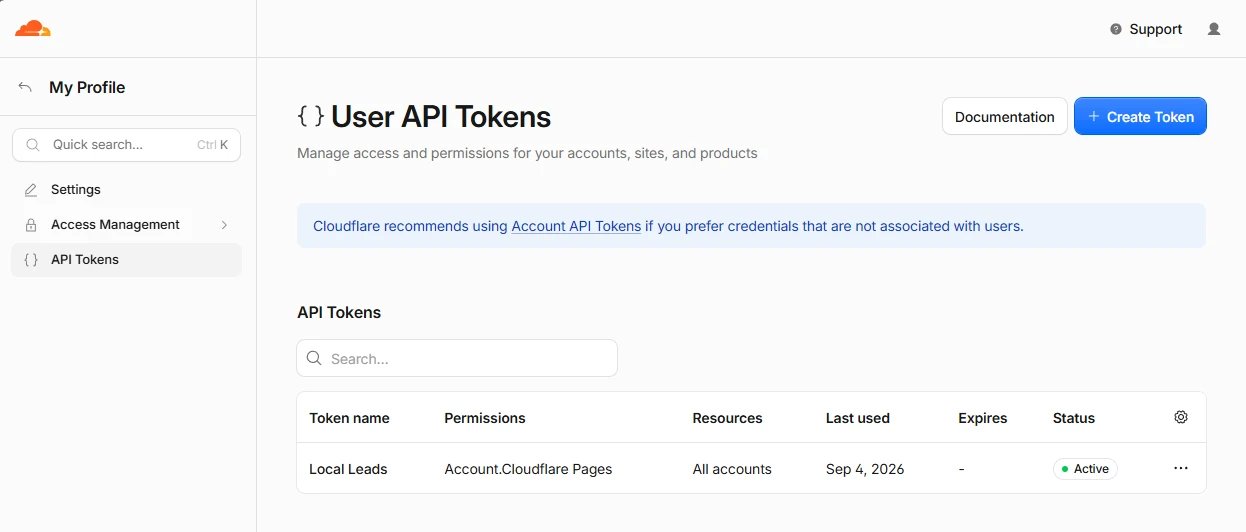
- Open My Profile → API Tokens, or go straight to dash.cloudflare.com/profile/api-tokens.
- Click Create Token, then Create Custom Token → Get started.
- Name it something you will recognise in six months.
Opportunora, or your agency's name, does the job. - Under Permissions, choose Account, then Cloudflare Pages, then Edit.
- Under Account Resources, choose Include and the account whose ID you just copied.
- Leave Client IP Address Filtering and TTL alone unless you have a reason, then Continue to summary → Create Token.
- Copy the token. Cloudflare shows it once.
3. Paste both into Opportunora
Open Settings → Deployment. In the Cloudflare Pages card:
- Put the account ID in Account ID.
- Put the token in API token.
- Click Connect account.
The app calls Cloudflare before it stores anything, and it makes the call that matters: it lists the Pages projects in your account. Verifying the token on its own would pass for a token with no Pages access, and you would find out at your first publish instead of now.
If Cloudflare accepts the pair, the badge turns Connected and the card shows the account ID with the last four characters of the token beside it. The token is encrypted at rest and never shown again. To replace it, paste a new one; leaving the field blank keeps the stored one.
Test connection asks Cloudflare again and reports what it found, for example: Cloudflare answered. 1 Pages project in this account, 99 of the 100 free-plan slots left.
What Opportunora does inside your account
One Pages project per workspace — not one per site. Every site you publish
lives in a subdirectory of that project, and a generated _worker.js routes
each incoming hostname to its own directory. That is why a single wildcard DNS
record covers every site you will ever publish, and why publishing the tenth
site asks nothing of you that the first did not.
Two consequences worth knowing:
- A publish deploys the whole workspace, rebuilt from the database each time, not just the site you clicked. It is self-healing — every publish re-asserts the true state of every live site — and it is why two publishes in one workspace run one after the other. The second one says so: Another website is publishing. They share one Cloudflare project, so publishes run one at a time — this one starts when that one finishes.
- The ceiling is Cloudflare's, not ours. The 100 in the Test connection message is Cloudflare's limit on Pages projects per account, and this design uses one of them. The limit you will meet first is Cloudflare's 100 custom domains per project, which is 100 published sites in a workspace.
When something is wrong
| What you see | What it means |
|---|---|
| CREDENTIAL\_ENCRYPTION\_KEY is not set… | The deployment has no key to encrypt the token with, so it refuses to store one. See Run your own deployment. |
| That does not look like a Cloudflare API token | Fewer than 20 characters reached the field. Something went wrong in the copy. |
| The token was rejected for this account. | The token is real but has no Pages access, or the account ID belongs to a different account than the token does. Recheck step 2, points 4 and 5. |
| Cloudflare did not recognize the token. | It was rolled or deleted at Cloudflare. Make a new one. |
| Cloudflare has no such account or project. | The account ID is wrong. |
| Cloudflare is rate limiting this account. | Wait a minute and try again. |
| Could not reach Cloudflare / did not answer within 20000 ms | A network problem between the app and Cloudflare, not a credentials problem. |
| Unverified badge | A token is stored but the last check did not pass. Press Test connection to see why. |
Nothing is stored when a check fails, so there is no half-connected state to clean up: a failed Connect account leaves the card exactly as it was.
Disconnecting
Disconnect removes the stored account and token, and asks first:
Sites you have already published stay online — they live in your Cloudflare account, not here. This app just loses the ability to publish or update them until you reconnect.
Nothing is removed at Cloudflare: the project, its deployments and every attached domain stay. Reconnecting the same account finds the same project again, because its name is derived from your publishing domain rather than stored anywhere else.
One thing to know while disconnected: deleting a website in Opportunora then skips the cleanup at Cloudflare, and leaves its hostname attached to the project. Reconnect first if you plan to delete sites.
Next
A connected account is half of publishing. The other half is a domain to serve the sites on.