Documentation Connections
Connect Stripe
Take card payments on your invoices. Connect your own Stripe account in one click, and see what the app stores, what it never stores, and how a payment lands.
An invoice set to Pay online carries a link and a QR code. Your client opens the link, clicks Pay, and pays into your Stripe account. Opportunora takes no cut and holds no Stripe key — it stores the account id and nothing else. Stripe's own fees apply, as they always would.
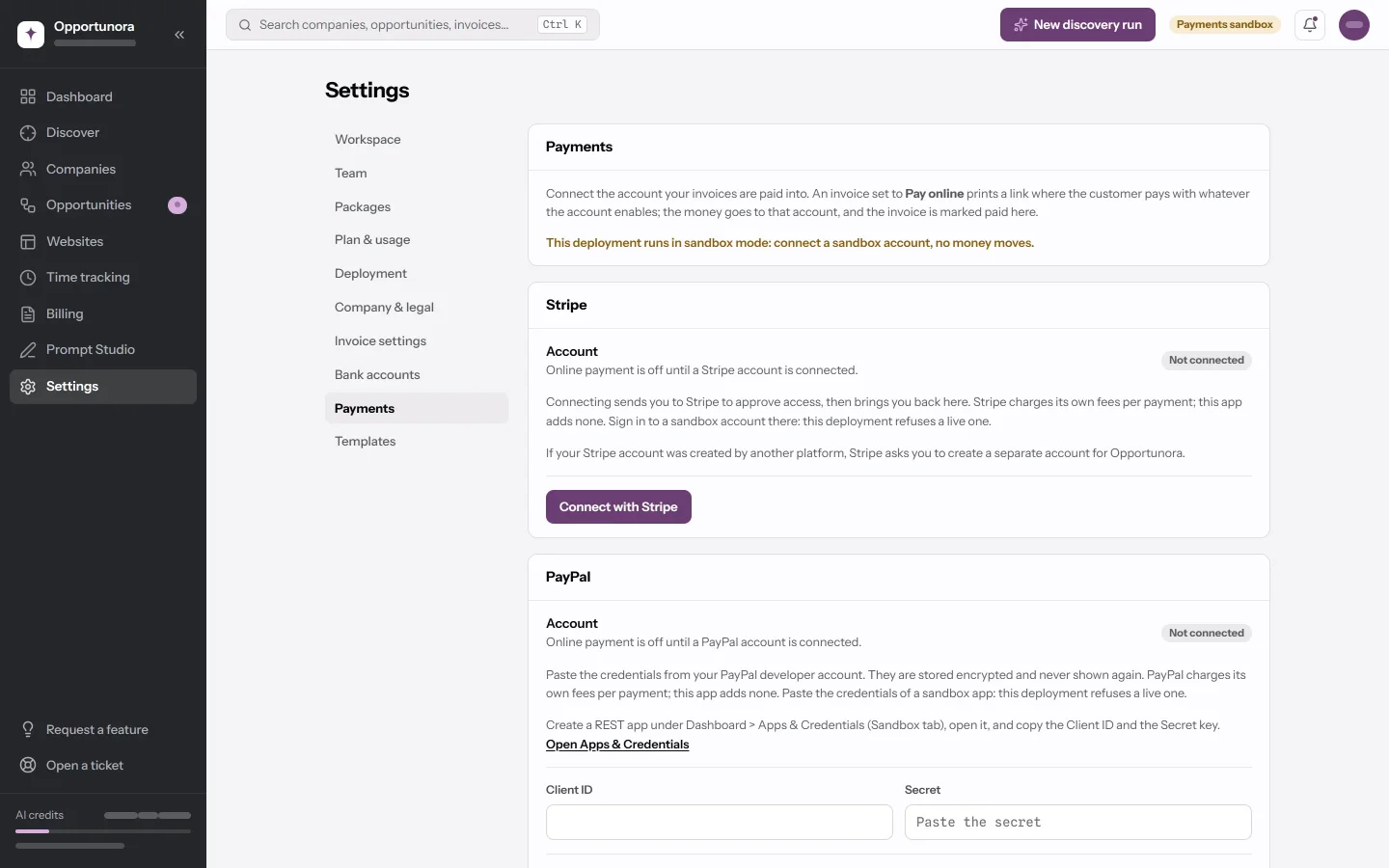
Connect the account
Open Settings → Payments and click Connect with Stripe. That is the whole thing, if the deployment is set up — see Before you can connect, on your own deployment if the card reads Not configured instead.
- The app sends you to Stripe to approve access. It prefills your email and, from Settings → Company & legal, your country.
- Approve at Stripe. If you have no Stripe account yet, you can create one in the same flow.
- Stripe sends you back to the Payments tab with one sentence: The account is connected. Invoices set to Pay online now print a pay link.
The card then shows the account id with its middle removed (acct…1234), your
business name, country and default currency as Stripe reports them, and a
Connected badge.
Only an Admin can connect, disconnect or register a webhook. Any role can open the tab and press Test connection.
What Opportunora stores
| Stored | Not stored |
|---|---|
The acct_… account id |
Your Stripe secret key |
| Live or test mode | The OAuth access token |
| Business name, country, default currency | The refresh token |
| Which payment methods Stripe reports as active | Anything a customer types at Stripe |
Every call the app makes to Stripe runs on the platform's own key, on behalf of your account. Nothing about your account is stored that could be used to move money outside this app.
When the connection needs attention
| What you see | What it means |
|---|---|
| Charges disabled badge | Stripe has not finished verifying the account, so the pay page cannot offer Pay. Finish the account setup at Stripe, then press Test connection. |
| Unverified badge | A connection exists but the last check did not pass. Test connection says why. |
| That is a live account, and this deployment runs in sandbox mode. | You approved a live Stripe account on a deployment set to sandbox, or the reverse. Connect the account that matches the mode. |
| That account is already connected to another workspace. | One Stripe account can be active in one workspace at a time. Disconnect it there first. |
| That link has already been used or has expired. | The connect link is a one-time link with a ten-minute life. Start again from this page. |
| The connection did not complete. | Try again. If it keeps failing, the reason is in the server log — Stripe's own error text is deliberately never printed onto the settings page. |
Test connection reports what Stripe says right now, for example: Stripe answered. Charges enabled; payment methods: card, twint.
Put a pay link on an invoice
In the invoice builder, section 3 · Payment, choose Pay online. The control is disabled until a provider is connected, and says so.
With one provider connected, the invoice uses it. With two, a Provider picker appears. The PDF then carries the link as text and as a QR code, next to your bank details if you have any.
Read Get paid for what the customer sees and what happens after they pay.
Refunds, disputes and disconnecting
- Refunds happen in Stripe, not here. There is no refund button in the app. Refund in the Stripe dashboard and the app records the result: a full refund sets the invoice to Refunded, a partial one leaves it Paid with the remainder still due.
- Disputes show as Disputed on the payment, with a Review the payment task on the dashboard. You answer the dispute in the Stripe dashboard; the app follows along.
- Disconnect asks first, and tells you how many checkout pages are open at that moment — those stop working. Invoices keep their pay links, and the pay page offers Pay again once you reconnect. Payments already received stay recorded. Disconnect is blocked while a payment is still settling.
Before you can connect, on your own deployment
Skip this if the Stripe card shows a Connect with Stripe button. If it shows Not configured and a list of variable names, the deployment has not been set up as a Stripe platform yet, and that is a one-time job for whoever runs it.
Stripe Connect needs one Stripe account for the platform itself — the deployment — separate from the account each workspace connects. A sandbox works before the platform account is verified.
- Register the platform. In the Stripe Dashboard open Connect and click Get started, then fill in Settings → Connect → Platform profile. Choose the model where sellers collect payments directly.
- Turn on OAuth and register the callback. Under Settings → Connect →
Onboarding options → OAuth, enable OAuth for Standard accounts and add the
redirect URI
<APP_URL>/api/payments/stripe/callback. Test mode acceptshttp://localhost:3000; live mode requires HTTPS. Copy the client id (ca_…) intoSTRIPE_CONNECT_CLIENT_ID. Test and live have different client ids, and the one you use must match the mode of your secret key. - Set the secret key.
STRIPE_SECRET_KEY, from Developers → API keys. Its_test_or_live_segment has to agree withPAYMENTS_LIVEMODE, or the app refuses to start the Stripe adapter and says so. - Receive events. Create a webhook endpoint at
<APP_URL>/api/webhooks/stripewith Events from: Connected accounts — not "Your account" — and put its signing secret inSTRIPE_WEBHOOK_SECRET. Sandbox and live need separate endpoints. Subscribe to:
checkout.session.completed
checkout.session.async_payment_succeeded
checkout.session.async_payment_failed
checkout.session.expired
charge.refunded
charge.dispute.created
charge.dispute.updated
charge.dispute.closed
charge.dispute.funds_withdrawn
charge.dispute.funds_reinstated
account.application.deauthorized- Restart the app and the worker. The Stripe card turns into a Connect with Stripe button.
Locally, Stripe cannot reach localhost, so forward the Connect events with
the Stripe CLI:
stripe listen --forward-connect-to localhost:3000/api/webhooks/stripePut the whsec_… it prints in STRIPE_WEBHOOK_SECRET, keep
PAYMENTS_LIVEMODE=false, and pay with 4242 4242 4242 4242.
Next
PayPal connects differently: you paste credentials rather than approve a redirect.