Documentation The loop
Invoices
How a won deal becomes an invoice, every field in the invoice builder, what each status means, and what the PDF prints and does not.
Billing holds your invoices, the documents that turn work into money. They sit in the same database as the deal, so an invoice is written from what actually happened.
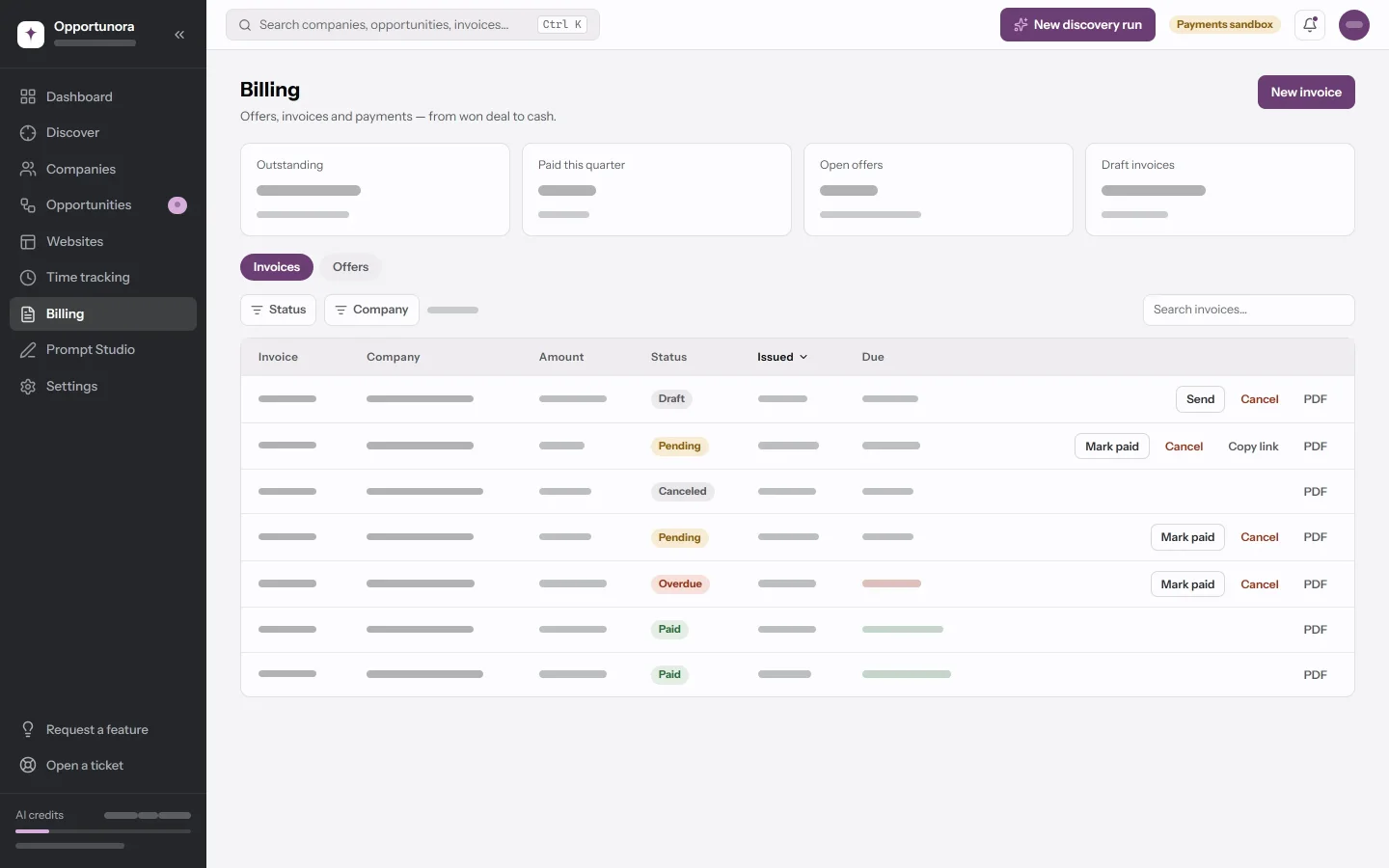
The tiles:
| Tile | What it counts |
|---|---|
| Outstanding | Everything still due, with the overdue part called out. |
| Paid this quarter | Payments received this calendar quarter. |
| Draft invoices | Written, not sent yet. |
From a won deal to an invoice
An invoice starts from a won deal:
- Move the deal to Won. See Companies and opportunities.
- Open Billing → New invoice. The deal is listed under Won, not yet billed.
- Create invoice on its row. The builder opens with the client and one line for the package at the deal's value.
New invoice
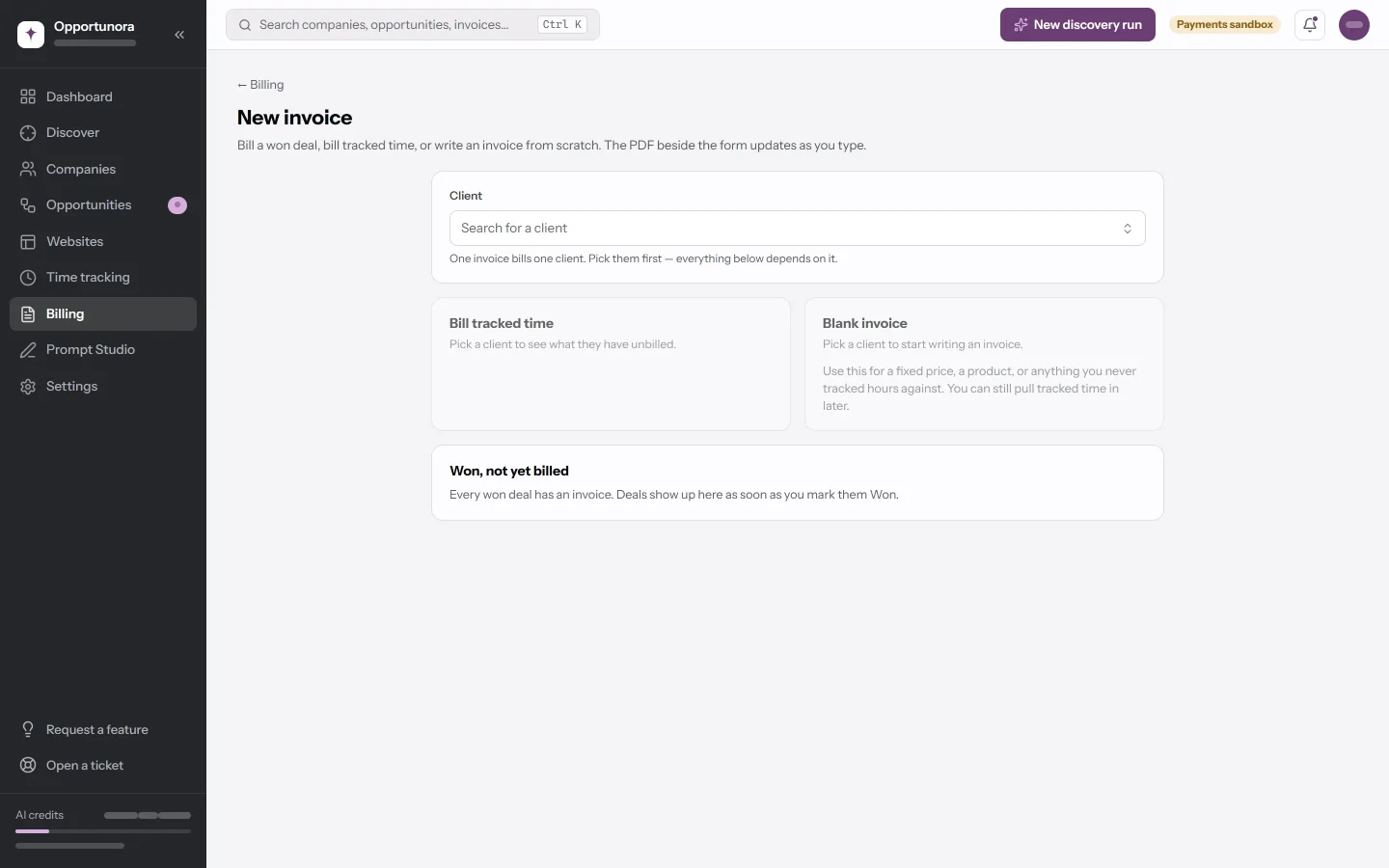
Pick the Client first. The list is your customers plus anyone with a won deal not yet billed. Then one of three ways in:
- Won, not yet billed — one row per won deal; Create invoice fills it in.
- Bill tracked time — shows the client's unbilled billable hours by project and pulls them in. See Track time.
- Blank invoice — one empty line. For a fixed price, a product, or anything you never tracked hours against. You can still pull time in later.
The builder
The form is on the left and the PDF on the right, redrawn as you type. Below 1280px the PDF moves under the form; on a phone it is replaced by a note.
1 · Details
- Invoice number — shown as a preview. The real number is assigned when you
save, so two drafts can never claim the same one. It is your Invoice
prefix and the next number from your Invoice number seed (Settings →
Invoice settings):
INV-1000,INV-1001… - Locale — sets the currency, the tax rate, the wording and the date and number format together, for example Deutsch (Schweiz) — CHF. Set manually splits them: a currency code, a tax rate, and a language — which is how you bill Swiss tax in English.
- Invoice date and Due date. The due date follows the invoice date until you change it.
2 · Line items
Each line has a Description, Qty, Unit price and a Discount — as a percentage or a fixed amount. Lines pulled from time carry a ◔ Time mark. Under the lines, an invoice-wide Discount on the invoice total (%) comes off the subtotal before tax, and Apply Tax switches tax on or off with the rate beside it.
3 · Payment
| Method | What prints on the PDF |
|---|---|
| Bank transfer | The chosen bank account's details. |
| Pay online | A pay link and a QR code, and optionally your bank details under them. Needs Stripe or PayPal. |
| External link | A URL you paste, with a QR code, in place of bank details. |
4 · Wording
- Introduction — opens the invoice, above the lines. Prefilled from Settings.
- Additional information — prints under the totals.
- Internal note — for your team. Never on the invoice.
Create draft invoice saves it as a draft, with its final number.
Statuses
| Badge | Meaning |
|---|---|
| Draft | Written, editable, not sent. |
| Pending | Sent and not yet paid. |
| Overdue | Past its due date. A background pass moves invoices here once a day, in your time zone. |
| Paid | Money recorded. A partial payment also reads Paid, with a … still due badge beside it. |
| Refunded | Refunded in full at Stripe or PayPal. |
| Canceled | Withdrawn. It stays in the list with its number. |
Two more badges can sit beside the status: Disputed, when a payment is disputed, and Payment pending, while an online payment settles.
What you can do, by status
| Action | When |
|---|---|
| Send | A draft. Nothing is emailed: the toast offers Copy pay link, and you send the PDF and the link yourself. |
| Edit | A draft with nothing collected. Anything else can only change how it is collected. |
| Mark paid | Money is due and no online payment is paid or pending. You enter the amount and the date; payments add up. |
| Reopen | Refunded in full, or paid with an uncollectable remainder after a partial refund. |
| Cancel | Draft, pending or overdue, with no online payment. If time is billed on it, you choose whether to release the hours to bill again. |
| Always. Opens in a new tab. |
There is no delete. Cancel instead: the number stays accounted for.
The PDF
A4, in one of four layouts you pick under Settings → Templates: Classic, Minimal, Corporate or Accent stripe. It prints your logo and company name, the client, the introduction, the lines, the totals, the payment block, the notes, and a footer with Thank you for your business and page numbers. An invoice raised from time adds a time report.
The wording follows the invoice's language in English, German, French, Italian, Spanish, Portuguese, Dutch, Danish, Swedish, Norwegian and Finnish.
Before your first invoice goes out
Four things the PDF does that are easy to assume otherwise:
- The header prints your company name and logo only — not your address, tax id, email or phone.
- An SVG logo does not print. Upload a PNG or JPG under Settings → Company & legal, or the PDF falls back to the name in larger type.
- The brand colours in Settings do not reach the PDF. Its colours come from the template.
- The footer is fixed. There is no setting for it.
Next
Time, and how it becomes invoice lines.