Documentation Start here
Create your workspace
Sign up with an email address, Google or Microsoft, and get a tenant of your own. What the trial includes, how sessions work, and how to get back in.
Every screen is behind a login. Signing up creates a workspace — your own companies, leads, opportunities, websites, invoices, uploads, settings and connections, separated from everyone else's.
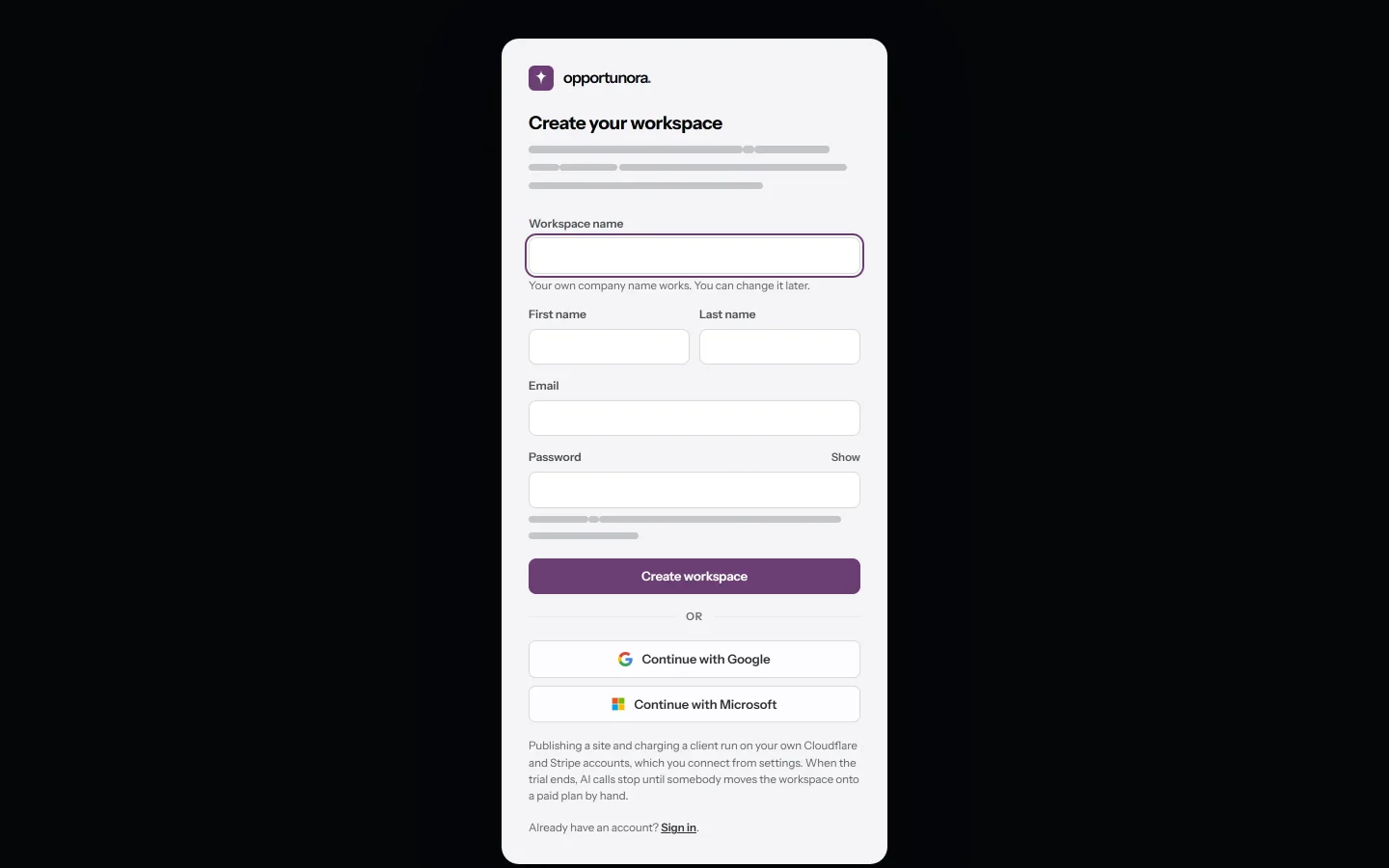
Sign up
Open app.opportunora.com/sign-up and either fill in the form or use a provider button:
- Email and password. The password has a minimum length the form states, and a long phrase you can remember beats a short one you cannot.
- Continue with Google or Continue with Microsoft. The provider asserts your address, so it is recorded as verified. Both buttons only appear when the deployment has that provider configured.
You also give the workspace a name. Your own company name works, and you can change it later under Settings → Workspace.
One address is one account is one workspace, across the whole deployment. An address that already has an account is refused with Sign in instead rather than given a second one. To run two workspaces, sign up again with a second address.
The setup wizard
A new workspace opens on a five-step wizard, over the dashboard:
- Welcome — what the app does, in three tiles.
- Tell us about your business — the business name, your home region, the street and number, postal code, city, VAT or tax id, your name and the sender email.
- What will you sell? — three starter packages you can keep or switch off,
and how invoices are numbered: a prefix such as
INVand the first number. - How should the AI sound? — the tone generated sites are written in.
- You're set up. — a summary. Nothing is saved until you press a button here.
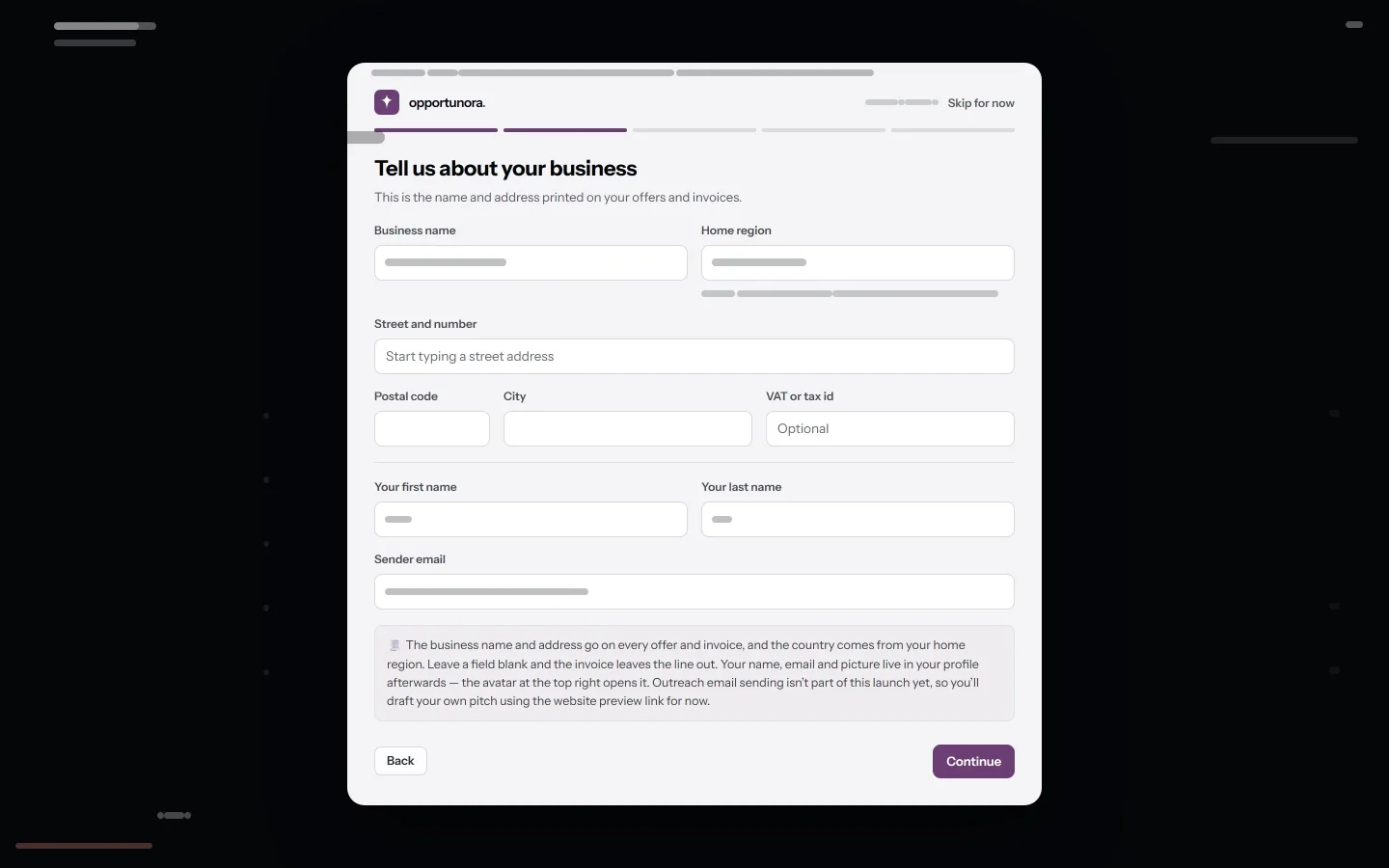
Skip for now closes the wizard and leaves those details blank. Only an admin can finish or skip it.
What a new workspace starts with
- The trial plan: 1,000 AI credits, 14 days. If you signed up with a password, the credits unlock when you open the link the app emails to your address. The link works for 48 hours, and the banner at the top of the dashboard sends a new one.
- No Cloudflare connection, so publishing is off until you connect one.
- No payment provider, so Pay online is off until you connect Stripe or PayPal.
- Empty everything else.
A thousand credits is sized to see the loop work once, not to carry a month. A discovery run is about 480 credits, a website generation 78, and an editor round 35 — so one lead taken from discovery to a revised, published site costs about 850 and leaves room for one retry.
Sign in
app.opportunora.com/sign-in takes the address on your account and the password you set, or the same provider buttons.
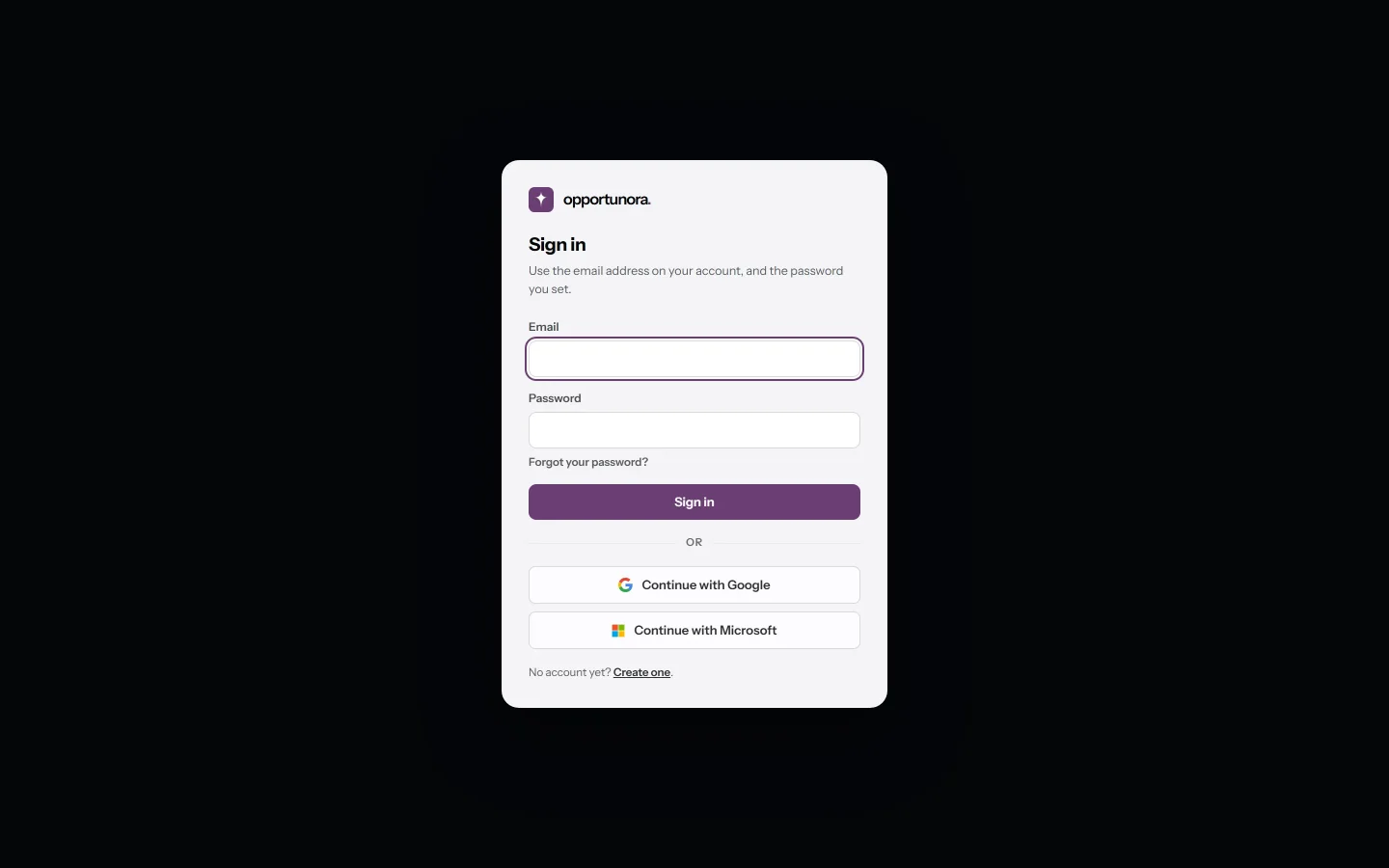
A session is a token in a cookie, stored only as a hash. It lasts 30 days from the moment you sign in and expires outright after 90, whichever comes first. The 30 days do not slide with use, so a browser you signed into a month ago asks again.
If you forget your password
Choose Forgot your password? on the sign-in page and enter the address on your account. If an active account uses that address, the app emails it a link that works once, for an hour. The page answers the same way whether or not an account exists, so nobody can use it to find out who has one.
The link opens a page that sets a new password. Setting it signs you out everywhere else, and the app emails you a notice that the password changed. If that notice arrives and you didn't make the change, request a new link and set the password again.
If the email doesn't arrive, check your spam folder before you ask again.
Your profile
/profile holds your name, job title and picture, and is where you change your
password.
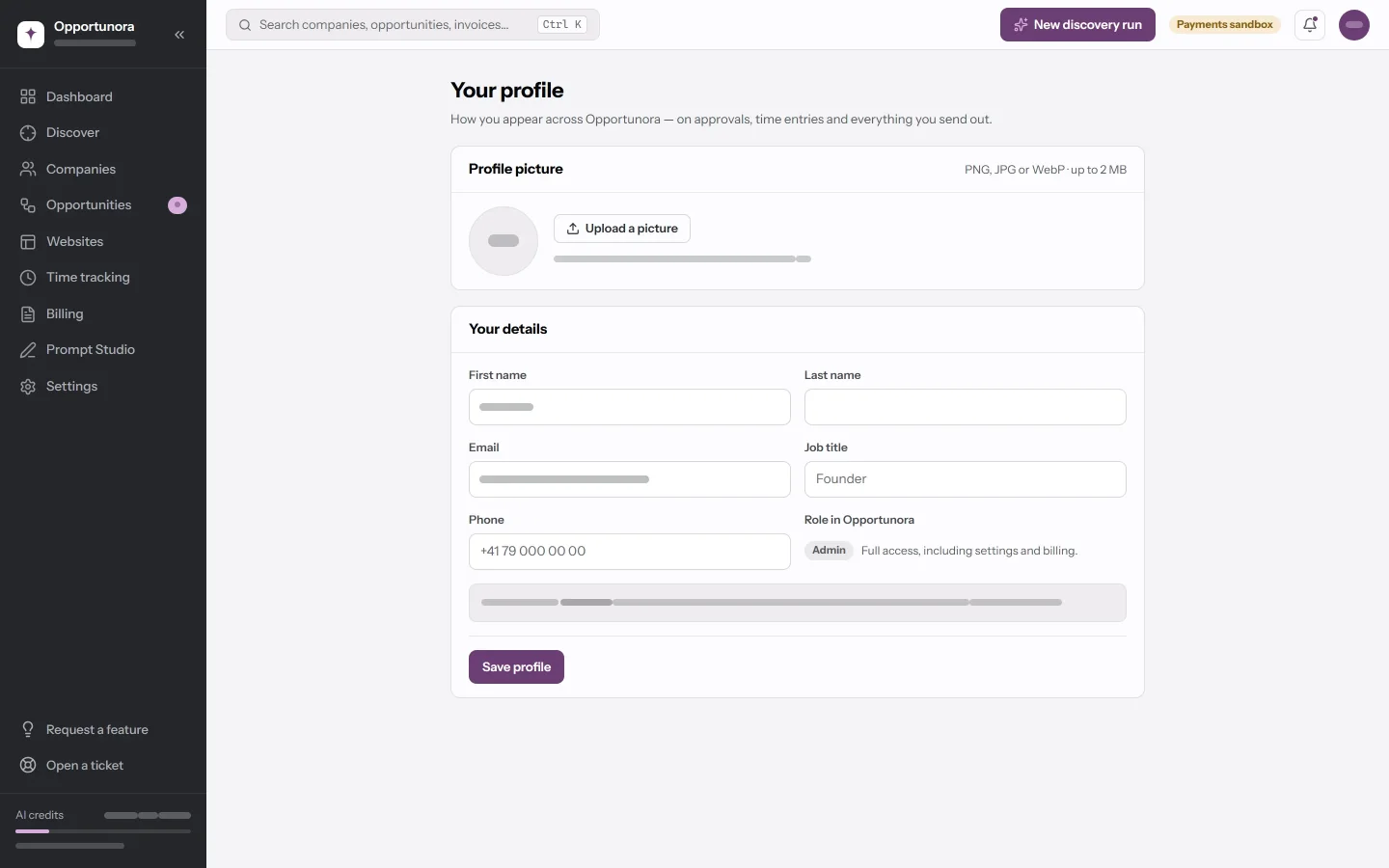
Changing your email here has a consequence worth knowing: it marks the new address unverified, and a Google or Microsoft sign-in on it is refused until you prove the mailbox is yours. Choose Forgot your password?, open the link the app emails to the new address, then try the provider again. That is deliberate — it is what stops someone from claiming an address by typing it.
Adding other people
Invitations exist in the app's data model and its API, with six roles, but there is no screen for them in the current build. See People and roles for what the roles mean and what that means for you today.
Next
A checklist that walks the whole loop once.