Documentation Your workspace
Prompt Studio
Edit the prompt every website is built from, and the language sites are written in. The variables you can use, the rules you cannot switch off, and how to get back to the default.
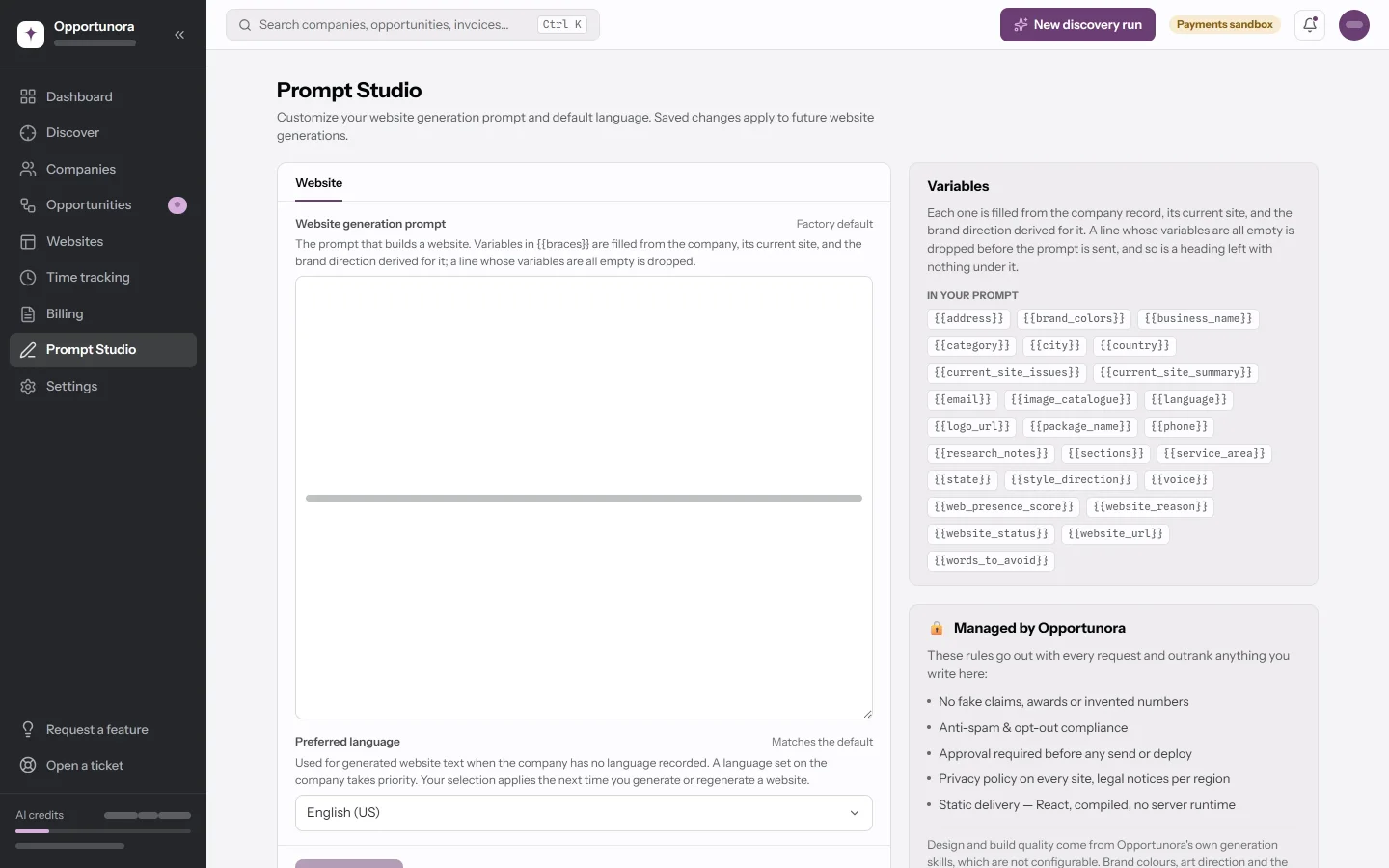
Prompt Studio holds the instruction every website is built from, and the language a site is written in when its company has none recorded. What you save here applies the next time you generate or regenerate a website. You never have to touch it — the defaults are what the product is tested with — but it is where you go when every site comes out wanting the same change.
The fields
Prompt Studio has one tab, Website, with two fields:
| Field | What it steers |
|---|---|
| Website generation prompt | The whole instruction a website is built from. |
| Preferred language | The language website text is written in when the company has no language recorded. A language set on the company takes priority. |
Each field says where it stands: Factory default, Matches the default, Edited with a date, or Unsaved changes. While either field has unsaved edits, a dot shows beside the Website tab.
Variables
Anything in {{braces}} is filled in for each business. The Variables card
beside the Website prompt lists them in two groups: In your prompt, and In
the default prompt — the ones the shipped version uses that yours no longer
does.
The ones you will reach for most:
| Variable | Filled with |
|---|---|
{{business_name}}, {{category}}, {{city}}, {{country}} |
The company record. |
{{phone}}, {{email}}, {{address}}, {{service_area}} |
The company's contact details and where it works. |
{{website_url}}, {{website_status}}, {{web_presence_score}} |
What discovery found about the current site. |
{{current_site_summary}}, {{current_site_issues}}, {{research_notes}} |
The analysis, in prose. |
{{package_name}}, {{sections}} |
The deal's package and the sections chosen in the studio. |
{{brand_colors}}, {{style_direction}}, {{voice}}, {{words_to_avoid}} |
The brand direction worked out for this business. |
{{logo_url}}, {{image_catalogue}} |
The business's own pictures, copied into your workspace. |
{{language}} |
The language to write in. |
A line whose variables all come out empty is dropped, and so is a heading left with nothing under it. That is how one prompt serves a roofer with a 2014 site and a dentist with none. A misspelt variable is left in the text as written.
What you cannot switch off
The 🔒 Managed by Opportunora card lists five rules that go out with every request and outrank anything you write:
- No fake claims, awards or invented numbers.
- Anti-spam and opt-out compliance.
- Approval required before any send or deploy.
- A privacy policy on every site, and legal notices where the region requires them.
- Static delivery — no server runtime.
Two of them are also checked on every page the AI writes, so a prompt that talked the model out of them would still fail validation.
Design and build quality come from the app's own generation guidance, which is not configurable. Colours, art direction and each site's voice are derived per business from its trade, its country and its current site.
Saving and restoring the default
- Save changes — or Ctrl/Cmd+S — saves every edited field.
- Restore default shows beside a field that differs from the shipped text, and puts that text back in the editor. It does not save until you do.
The browser warns you about unsaved edits when you reload or close the tab — but not when you move to another page inside the app. Save before you navigate.
Prompts are saved per workspace. A missing or blank one falls back to the shipped default, so deleting your text can never break generation.