Documentation The loop
Find leads
Run a discovery on a town and a radius. Every field on the run form, what the site score measures, what a run costs, and what to do when it saves nothing.
Discover is where the loop starts. You name a place and a radius, and a research agent looks for local businesses whose website is missing, broken, outdated or weak, checks each one, and saves the ones worth a pitch — each with a sentence saying why.
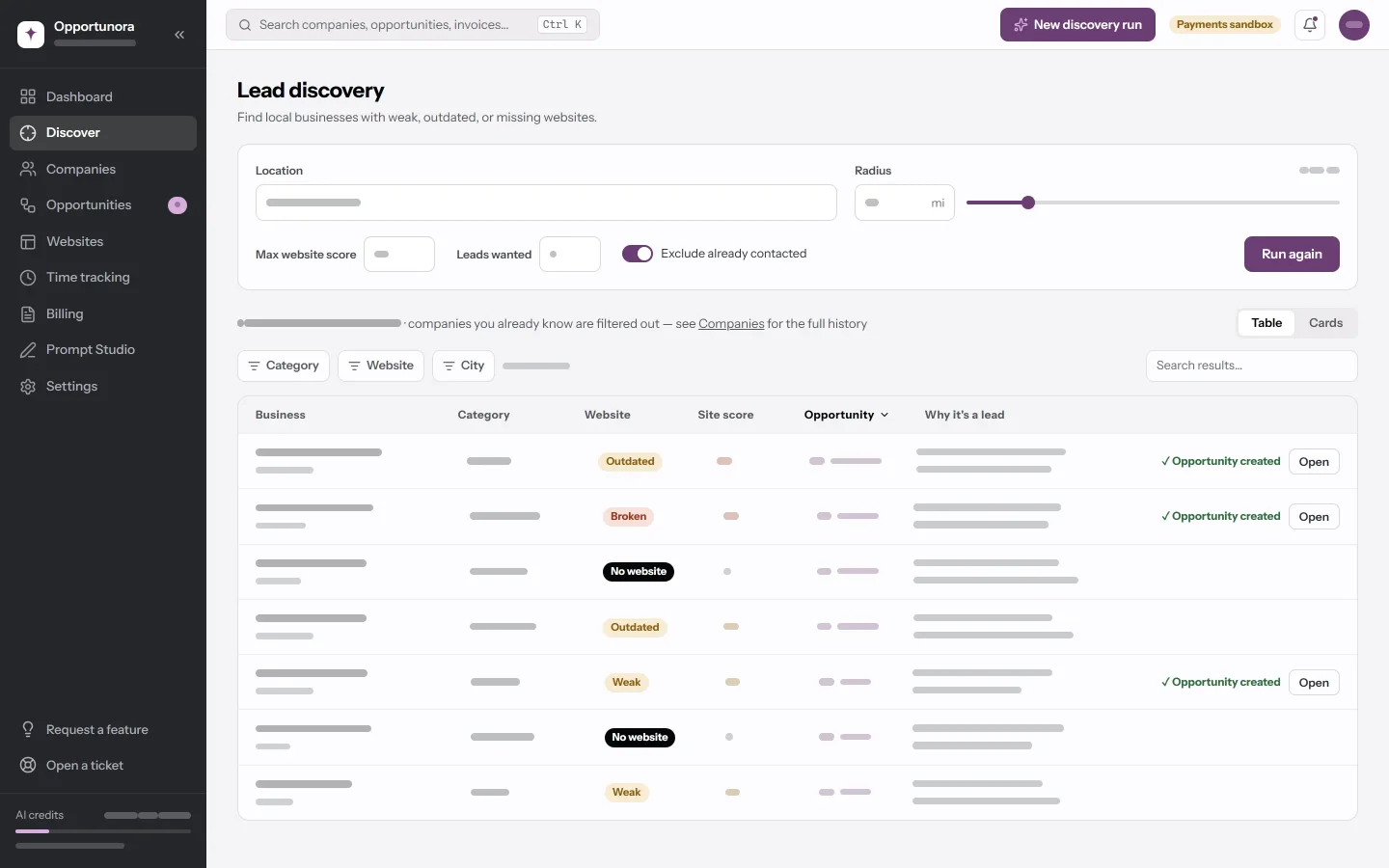
The run form
| Field | What it does | Default | Limits |
|---|---|---|---|
| Location | The town, region or district to search. Any language, any script. Suggestions come from towns you already have companies in, then from OpenStreetMap; you can ignore them and type freely. | Your Default region from Settings → Workspace | Required |
| Radius | How far around the location to look. Kilometres, or miles for the US and UK — changing the location converts the number rather than reinterpreting it, so 15 km becomes 9 mi. | 15 km / 10 mi | 1–100 km, 1–60 mi |
| Max website score | Leave out businesses whose site already scores above this. Clear it to switch the filter off. | 55 | 0–100 |
| Leads wanted | How many leads the run tries to save before it stops. | 5 | 1–50 |
| Exclude already contacted | Ask the agent to skip businesses already past the lead stage. | On | — |
Set Default region under Settings → Workspace and every run starts there. The form remembers what you last used, per workspace.
On a phone, Max website score, Leads wanted and Exclude already contacted are hidden; a summary line shows the values the run will use.
Starting a run
Press Run discovery — Run again once a finished run's results are on screen. The button is disabled, with the reason under it, when the run cannot start:
- Not enough AI credits to start a run: it needs about 20 and 12 are left. The start needs enough for one step of the agent, not the whole run.
- Out of AI credits until Oct 1.
- Your trial has ended. AI actions stay paused until the workspace moves to a paid plan.
- A field that is out of range.
Only an Admin can start or cancel a run. Other roles see the button and get Permission denied from it.
Discovery shares your workspace’s concurrent job allowance with website generation and publishing. Additional jobs wait for capacity; everyone in the workspace shares the same plan limit.
While it runs
The run happens in the background. You can leave the page; a notification tells you when it is done. While you stay, a card streams what the agent is doing: which businesses it is reading, what it found, what it saved.
Cancel stops it between steps, never in the middle of one. Leads already saved are kept.
Reading the results
The results show every company this run saved — businesses you already had are filtered out, and Companies holds the full history. Switch between Table and Cards on a desktop; a phone always gets cards.
| Column | What it shows |
|---|---|
| Business | The name, linking to the company page, with the town under it. |
| Category | The trade, as the agent recorded it. |
| Website | What state the current site is in. See below. |
| Site score | 0–100, computed from the page itself. Red below 35. Blank when the site never answered. |
| Opportunity | How good a prospect this is, in five steps: 20, 40, 60, 80 or 100, with a bar of the same length. |
| Why it's a lead | One sentence from the agent. |
The table sorts by Opportunity, best first. Filter by category, website status or town, or search the results.
Website status
| Badge | Meaning |
|---|---|
| No website | Nothing found. Often the strongest lead. |
| Platform only | A listing, a social profile or a marketplace page — no site of its own. |
| Broken | The site did not answer, or the domain is parked. |
| Outdated | No HTTPS, no mobile layout, or a copyright line more than three years old. |
| Weak | It works, but it scores poorly. |
A site good enough to be a hard sell is never saved, and neither is one whose state could not be established.
What the site score measures
The number is computed by the app from the page, not guessed by a model, so the same page scores the same on every run and the filter means something.
| Check | Points |
|---|---|
| Serves over HTTPS | 15 |
| Has a mobile viewport | 15 |
| Offers two or more ways to get in touch | 15 |
| Copyright line from this year or last | 10 |
| Explains itself — enough headings to scan | 10 |
| Answers in 1.5 seconds or less | 10 |
| Has a booking or contact form | 10 |
| Publishes a postal address as structured data | 5 |
| Carries any structured data | 5 |
| Has a meta description | 5 |
The company page lists which checks failed, worst first, as sentences you can lift straight into a pitch.
What you do with a result
Each row has three actions:
- Create opportunity — turns the business into a deal. The row then reads ✓ Opportunity created with a link to it.
- Open — the company page, with everything the agent found: findings with their sources, the improvement angle, an outreach angle.
- ✕ Ignore — hides the business from future runs. Un-ignore undoes it.
When a run saves nothing
The run saved no leads means every business it checked either has a site good enough to be a hard sell, or scored above your maximum. Widen the radius, raise the max website score, or try the next town.
A run can also stop early and still keep what it saved:
| Ending | What happened |
|---|---|
| Saved everything asked for | The normal finish. |
| Saved fewer | The agent ran out of steps, or ran out of qualifying businesses at its evidence standard. It says which. |
| Stopped for credits | The workspace balance could not cover the next step. |
| Stopped for budget | The run hit its own cost cap — twice its estimate. |
| Cancelled | You pressed Cancel. |
| Failed | The AI provider refused or errored. The toast carries the reason. |
The agent remembers what it already checked. A business an earlier run looked at and rejected is skipped next time, so re-running the same town moves on to new ground rather than paying twice for the same research.
What it costs
A run is billed per step of the agent, at roughly 20 credits a step. A typical run is about 480 credits — about 90 credits per saved lead on the runs on record, less when the transcript caches well. The meter in the sidebar moves while it runs. See AI credits and plans.
Next
A lead becomes a deal.