Documentation The loop
Generate a website
Build a complete static website for a deal from what discovery learned about the business. The studio, the seven steps, where the photos come from, and what a version is.
A website is always generated from a deal. There is no "new website" button on the Websites screen, because a site with no deal behind it has nothing to be written about and nothing to be billed against. Start from one of these:
- Generate website preview on the company page's next-step rail.
- Generate website preview on the deal's own page.
- Generate now when you move a deal into Generating.
Each opens the generation studio for that deal.
The studio
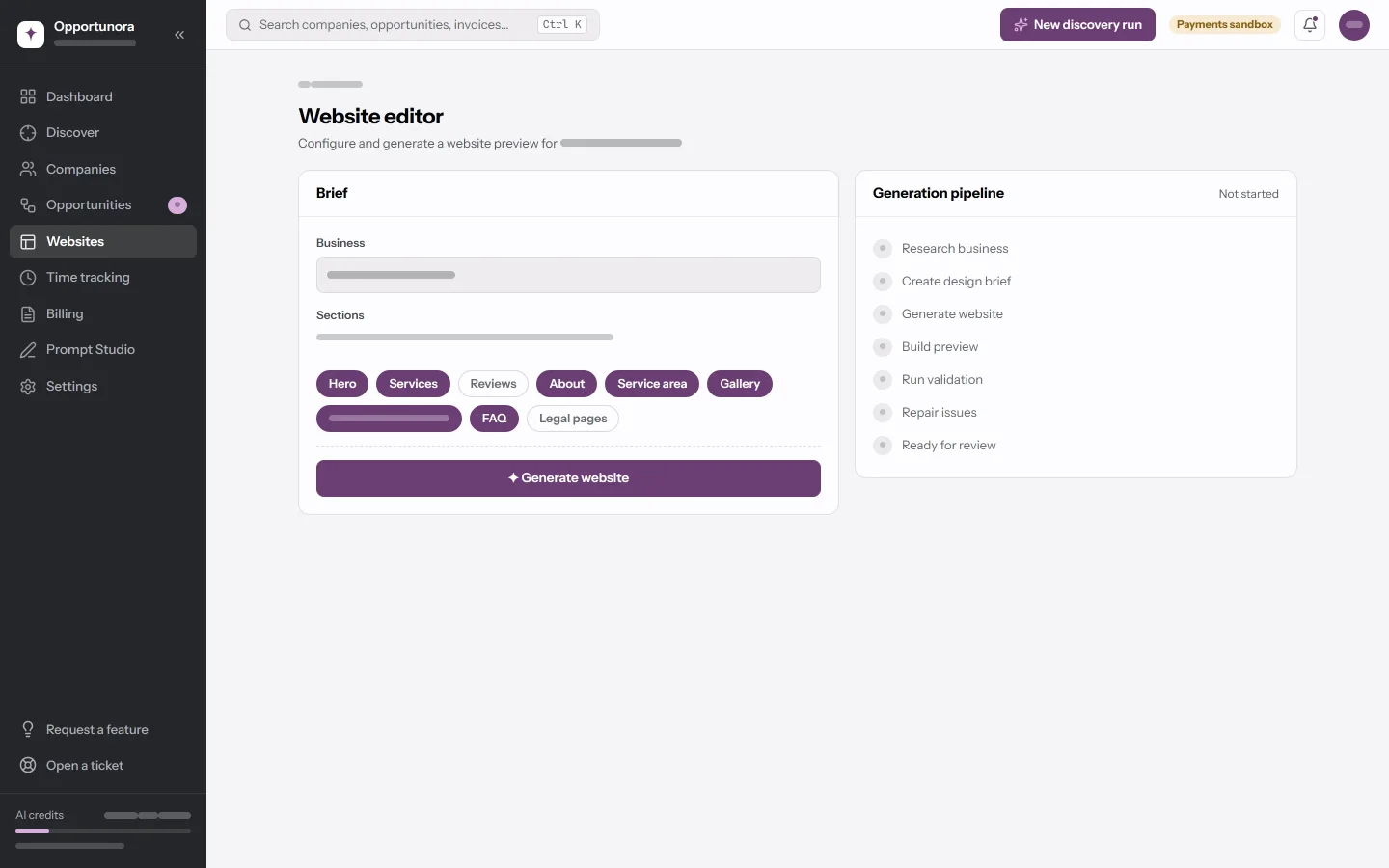
The Brief card shows the business and the Sections the site will have: Hero, Services, Reviews, About, Service area, Gallery, Contact + quote form, FAQ and Legal pages. Which ones start switched on is decided per business, with a reason on each — No reviews in the analysis, and the generator must not invent any, or A roofing business travels to the customer, so coverage matters. Hover a chip to read it, click to switch it.
The line above the chips says what the choice is based on: the analysis of the current site, what discovery found, or the standard set when there is nothing on file.
There is no package picker and no tone picker here. The package comes from the deal. The voice comes from Settings → Workspace → Tone, and each site then picks up its own register and words to avoid from the business itself.
Generate
Press ✦ Generate website. The job goes into a queue, a worker picks it up, and the Generation pipeline card follows the real steps:
- Research business — reads the current site.
- Create design brief — works out the brand direction, including the business's own colours where its current site declares them.
- Generate website — one model call writes the whole site.
- Build preview
- Run validation — structural checks, below.
- Repair issues — sends any failure back to be fixed.
- Ready for review
Closing the tab is fine; the run carries on, and the studio picks it back up when you return. When it finishes, the studio opens the editor on its own.
Before it starts, the job can be cancelled with Cancel — it has not started yet. Once a worker has it, it runs to the end.
You can queue different websites. The workspace plan limits how many jobs run at once across discovery, generation and publishing; one website can have only one generation queued or running. A generation costs about 78 credits; a run that repairs costs a little more.
What you get
A complete static site in plain HTML, CSS and a little JavaScript, all inline — no build step, no server, no external scripts or fonts. It usually has more than one page when the content earns it: the privacy policy, a legal notice where the country requires one, sometimes an about page.
Generating also sets things in motion:
- The deal moves to Ready for review.
- An approval is filed, which is what makes Approve & publish appear.
The photographs are the business's own
The site uses pictures from the business's current website — the logo, photos of the work, team portraits from an about or team page. The app downloads each one into your workspace first and the site references the copy, never the old host. That is what keeps the site working after the old one is switched off.
Images are up to 8 MB each, checked by their content rather than their file name. A picture that fails to copy never fails the build; the model uses shapes and colour instead.
Your copies are private to your workspace. In the downloaded ZIP they are real
files under assets/, so the folder works on any host.
Validation
Every generated page is checked against about two dozen structural rules before you see it: a doctype, a language, a title and description, exactly one main heading, a footer, a privacy policy reachable from every page, no images or scripts loaded from another host, no placeholder text left in, and the hooks the editor needs to find the hero, the headline and the call to action.
A failure goes back to the model as a repair request, up to twice. A repair is only kept if it fails fewer checks than the draft it replaces. A version that still fails ships anyway, and its summary says so: … 2 structural check(s) still failing — review before sending.
The checks are structural, never aesthetic. Whether the site looks right is yours to judge.
Versions
Each generation, and each edit in the editor that changes the site, writes a new version: v1, v2, v3. The version pill in the editor lists them and lets you look at an older one.
Regenerate in the studio builds a fresh version from scratch. It does not start from your edits.
The Websites screen
Every website project, in every state:
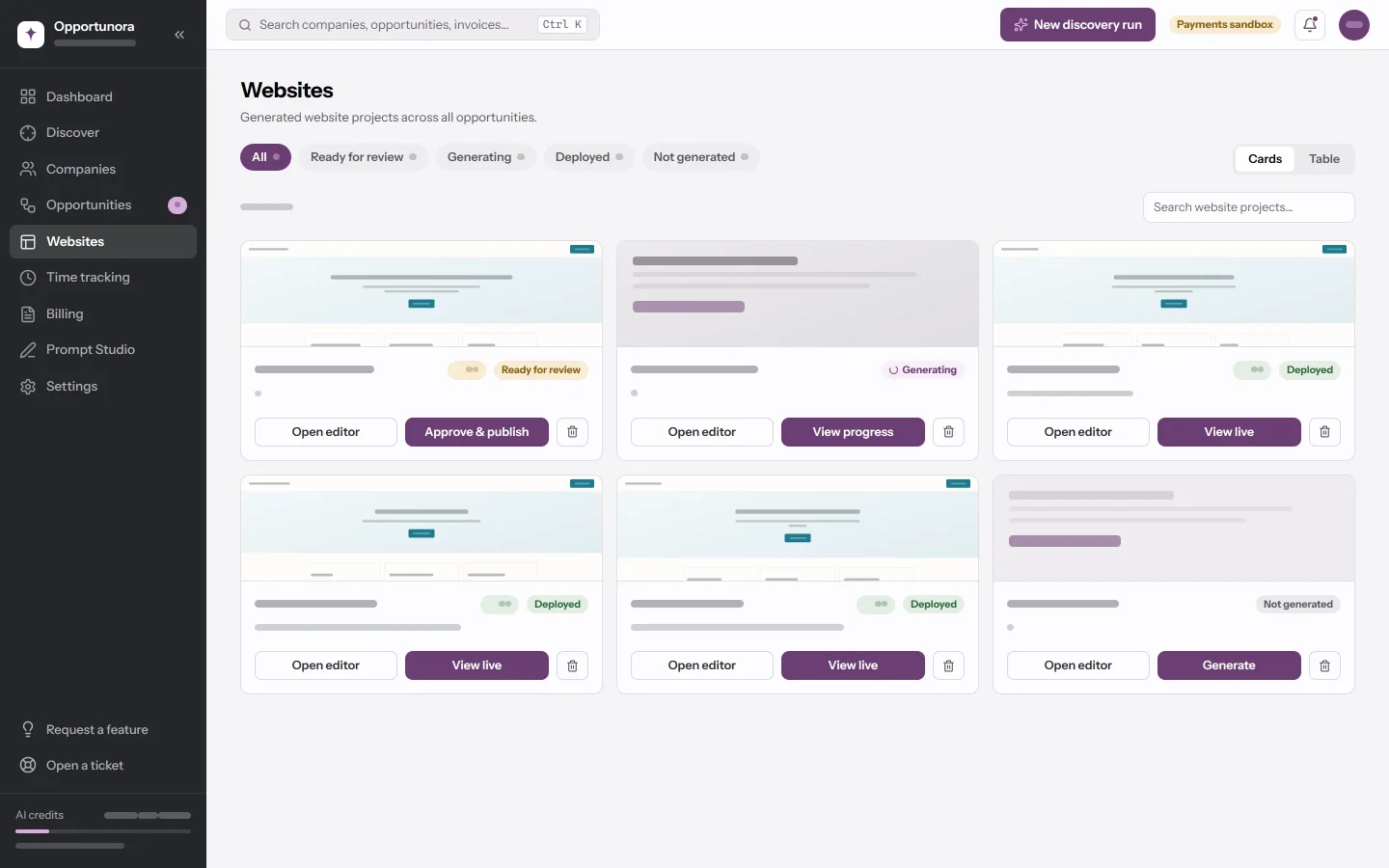
| Status | Main button |
|---|---|
| Not generated | Generate |
| Generating | View progress |
| Ready for review | Approve & publish, or Review in editor |
| Deployed | View live |
Open editor is on every card. The address under an unpublished site's name is a label for you, not a working link — a preview is only reachable signed in, at its own page in the app.
The trash button deletes a project with every version and its chat, and moves the deal to Discarded. For a live site it offers Take it offline only first, which keeps the project so you can publish it again.
When generation fails
The deal and the website go back to where they were, so nothing is stranded behind a spinner. The message names the AI provider generically — The AI provider returned 429… — and the details are in the server log. Running out of credits stops a generation without retrying it, because a minute later the account is just as empty.
Next
Refine it by conversation.