Documentation The loop
Get paid
What your client sees when they open the pay link, how a payment reaches the invoice, and what the app does with partial payments, refunds, overpayments and disputes.
An invoice set to Pay online prints a pay link and a QR code. Your client opens it — no account, no login — and pays into your Stripe or PayPal account. The invoice turns Paid on its own, with the provider's fee and the net amount recorded.
Setting it up is covered in Connect Stripe and Connect PayPal. This chapter is what happens after.
Getting the link to your client
The app never emails your clients, so the link travels with the PDF you send yourself:
- It is printed on the PDF, as text and as a QR code captioned Scan to pay.
- Send on a draft invoice shows Copy pay link in its confirmation.
- The invoice's page has a Pay link card with Copy link and Open ↗.
The link is permanent. It keeps working after a partial payment, after you reconnect a provider, and after you switch the invoice between providers.
What your client sees
A single page with your logo and company name, the invoice number, who it is for, the Amount due, the Due date — with an Overdue mark when it is past — and one button: Pay CHF 2,400.00. Under it, your bank details, if the invoice carries them, so a client who would rather transfer can.
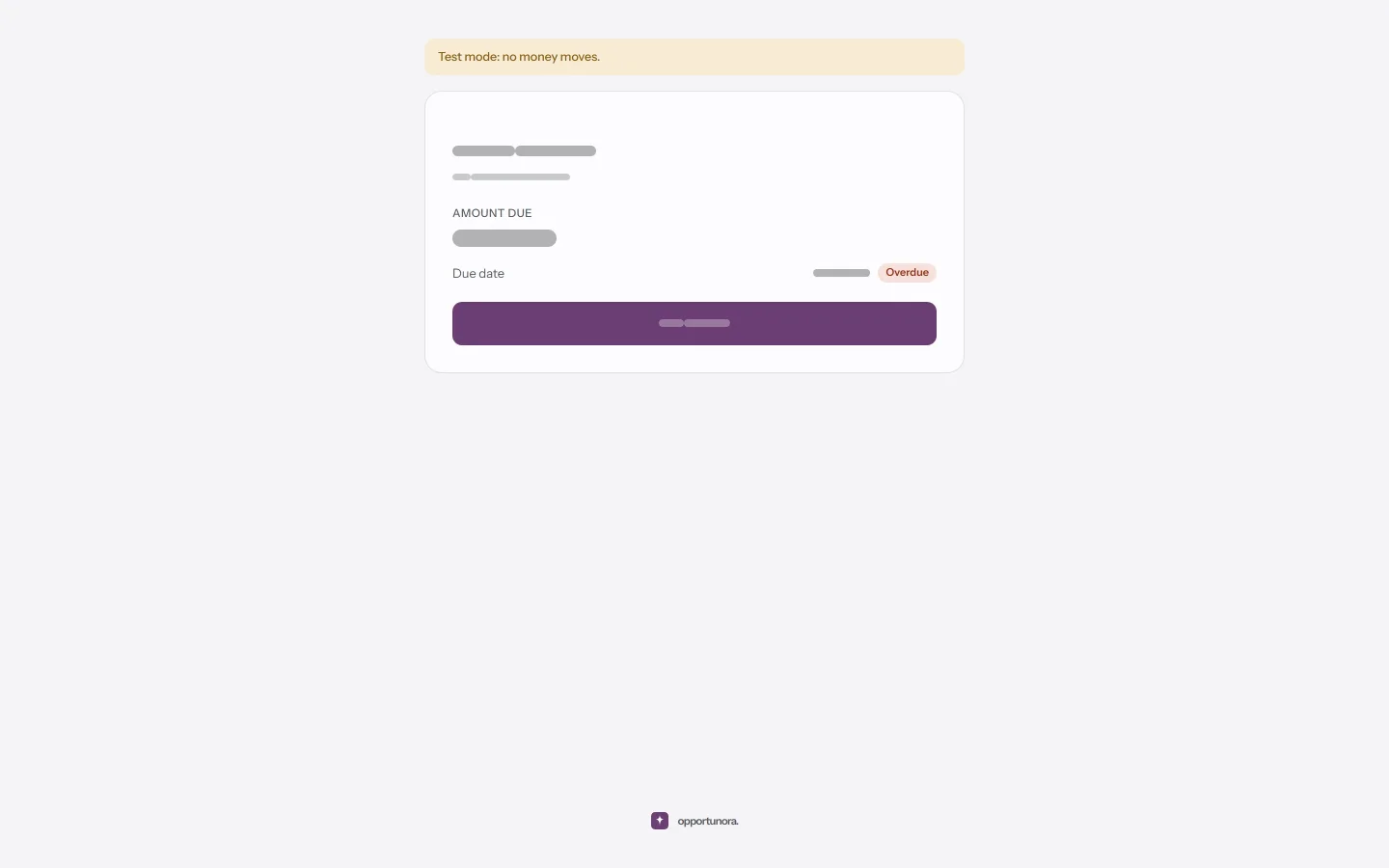
It never shows the invoice's lines, notes or time report, and it is marked for search engines to leave alone.
Once there is nothing to pay, the page says so in one sentence and shows nothing else:
| The invoice is | The page says |
|---|---|
| a draft | This invoice isn't ready for payment yet. |
| paid in full | Paid on 12 March 2026. Thank you. |
| canceled | This invoice was canceled. |
| refunded | This invoice was refunded. |
And when online payment cannot be offered — the account cannot take charges yet, the currency is not supported, the amount is below the provider's minimum — the page shows the amount without a button: Online payment isn't available for this invoice. Use the bank details below.
While the deployment is in sandbox mode, a Test mode: no money moves. banner sits across the top.
What happens when they press Pay
- The app opens a checkout at Stripe or PayPal for exactly the amount due, and sends your client there.
- Your client pays with whatever your account offers them — cards, TWINT, SEPA debit, PayPal, and so on.
- They come back to the pay page, which confirms the payment with the provider before it shows anything, so it is right even if the provider's own notification is still on its way.
Two clicks on Pay never open two checkouts. A checkout left open is reused if the amount has not changed, and closes by itself after a few hours.
Nothing about the payment is taken on trust from the browser. The invoice changes only after the app has asked the provider directly.
On the invoice afterwards
The invoice turns Paid and its page gains a Payments card: the provider,
the method, the amount, and fee … · net …. The fee and net are in the
currency the money settled in, which is not always the invoice's.
| What happened | What the invoice shows |
|---|---|
| Paid in full | Paid. |
| Paid in part | Paid, with … still due beside it. The link keeps working for the rest. |
| Paid too much | Paid, the payment flagged Overpayment, and a notification telling you to refund the difference at the provider. |
| Paid in another currency | Nothing credited; the payment is flagged Currency mismatch for you to sort out. |
| Paid after you canceled | The invoice is left alone; the payment is flagged Paid after cancel and you are told to refund it. |
| Still settling (bank transfers, some local methods) | Payment pending, and the pay page tells your client it is waiting for their bank. |
Refunds
Refunds are made at Stripe or PayPal, never in the app. The app notices them — from the provider's notification, or on its next reconciliation pass — and records the difference:
- A full refund sets the invoice to Refunded.
- A partial refund leaves it Paid and lowers the amount paid.
Reopen puts a refunded invoice back up for payment, or puts the part a partial refund left uncollectable back on the amount due. The link starts working again.
Disputes
When a client disputes a charge, the payment shows Disputed, the invoice header does too, and the dashboard adds Review the payment on … with Open the invoice. You answer the dispute at the provider, which is where the evidence has to go. When it closes, the payment reads Dispute won or Dispute lost; a lost dispute comes off the invoice like a refund.
For PayPal, disputes only appear if you turned on Customer Disputes on the REST app.
The reconciliation pass
A background pass runs every ten minutes. It retries notifications that failed, closes checkouts that expired, re-reads recent payments to pick up a fee, a refund or a dispute whose notification never arrived, and moves invoices past their due date to Overdue once a day in your time zone.
It is also what confirms PayPal payments when the webhook could not be registered. It runs in the worker process, so a deployment whose worker is stopped confirms payments only when clients return to the pay page.
Marking paid by hand
For a bank transfer, Mark paid on the invoice. Enter the amount and the date; payments add up, and an amount short of the total leaves the rest due. Mark paid is unavailable while an online payment is paid or settling on the same invoice, so the two can never count the same money twice.
Next
The settings behind all of this.