Documentation The loop
Edit a website
Change a generated site by telling the AI what to change, pointing at an element first when it matters. The toolbar, the chat, research, attachments, and what each round costs.
The editor is where a generated site becomes one you would put your name to. You do not drag things around. You say what to change, in plain words, and the AI rewrites the site and saves the result as a new version.
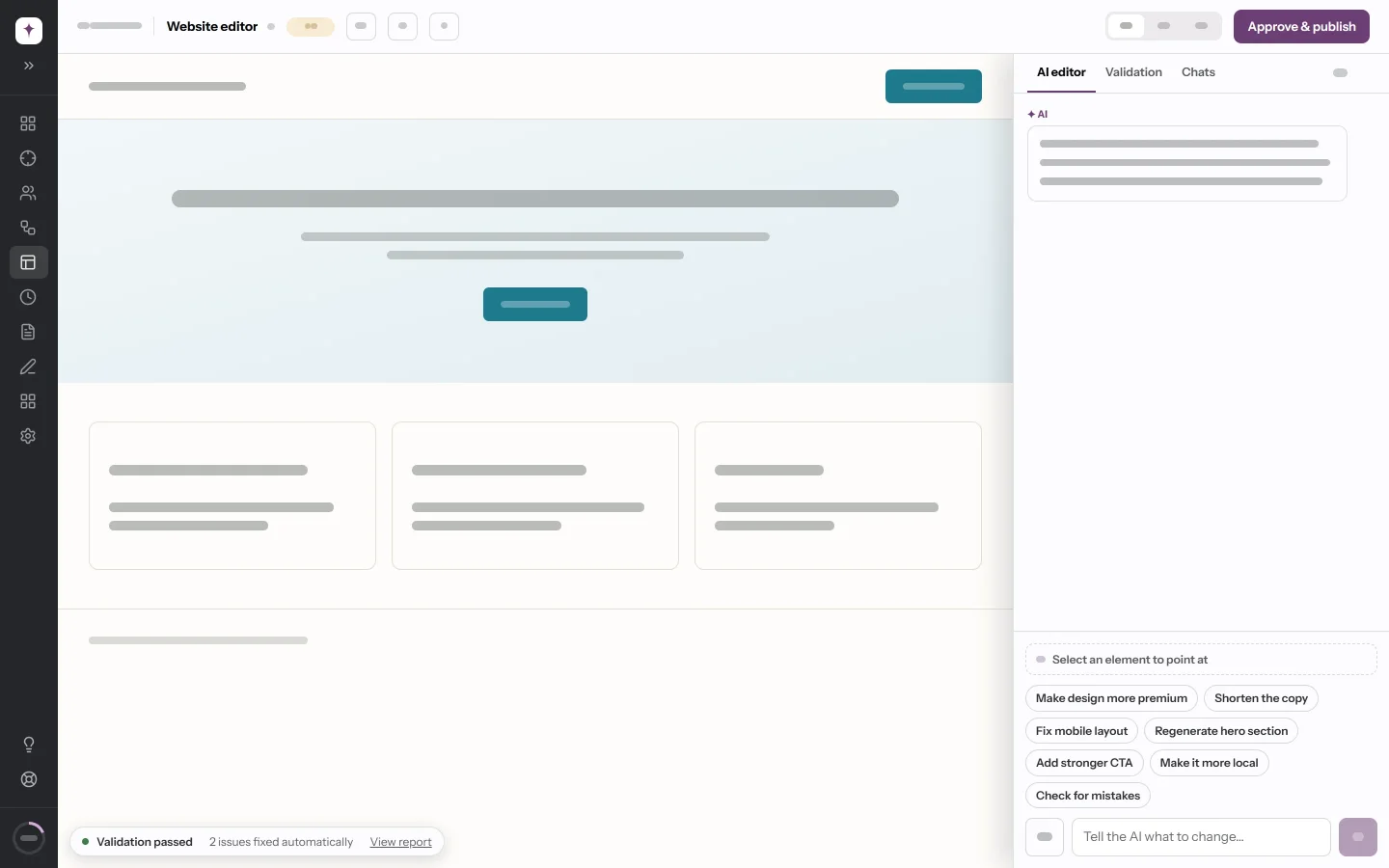
Open it with Open editor on the Websites screen, or from the deal. The app's sidebar folds to icons here and the top bar steps aside; the editor's own toolbar carries the way back.
The toolbar
| Control | What it does |
|---|---|
| ← Websites | Back to the list. |
Version pill, v3 ▾ |
Lists every version. Picking one shows it in the preview — see Versions. |
| Refresh | Reloads the preview. |
| Open in new tab | The current version, full-window, signed in. |
| Download files | The whole site as a ZIP. Desktop only. |
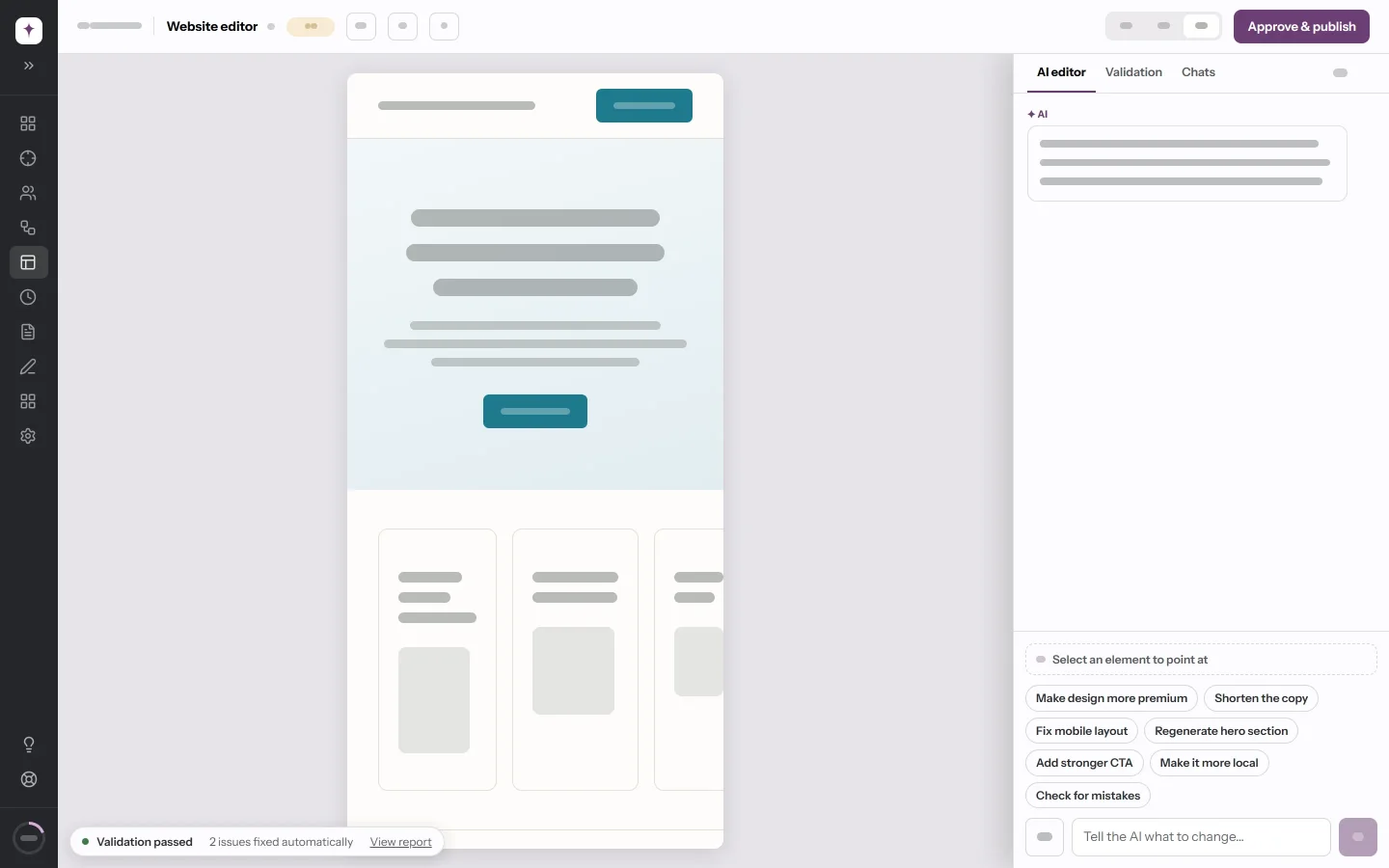
| Desktop · Tablet · Mobile | Preview width: full, 760px, 390px. Desktop only. |
| ✓ Deployed | Shown once the site is live. It links to it. |
| Approve & publish | Publishes the current version. See Publish a website. |
Browsing the preview
The preview is the real site, not a picture of it. Click its navigation and the page changes; the strip at the bottom shows which page you are on, with ← Back and Home. Forms never submit — a draft has no backend — and links to other sites open in a new tab.
Telling it what to change
Type into Tell the AI what to change… and press Enter. Shift+Enter adds a line. Be specific about what, not how:
The headline talks about the family history. Make it about same-day emergency repairs, and put the phone number in the hero.
The quick-action chips — Make design more premium, Shorten the copy, Fix mobile layout, Regenerate hero section, Add stronger CTA, Make it more local, Check for mistakes — fill the box with a detailed instruction. They do not send it. Read it, adjust it, then send.
While the AI works, a panel shows what it is doing — reading the pages, looking something up, rewriting a page, checking the structure — with a clock. You can draft your next message meanwhile. When it is done, the reply ends with ✓ Applied and the new version number, and the preview jumps to it. How this was done under the reply keeps the steps.
A message that asks a question rather than a change gets an answer and no new version.
Pointing at an element
Click Select an element to point at, then click the thing in the preview — a heading, a button, a photo, a whole section. It gets an outline and a chip above the message box names it. Your next message applies to that element:
Make this shorter and warmer.
One pick covers one message. Escape cancels a pick; ✕ on the chip clears it. If you switch to a version the element is not in, the chip warns you to pick it again.
Looking things up
The editor can read the web before it edits, which is what makes instructions like these work:
- Take the legal notice from their old site at example.ch. — it fetches the page, follows its links to the one that holds the notice, and puts the text on the right page.
- Use the opening hours from their Google listing. — only if the deployment has a search backend. Without one, it asks you for the address instead.
- Put the team portraits from their about page on ours. — it copies the pictures into your workspace; the site never links to the old host.
One message may make up to six lookups and copy up to twelve pictures. Private and local network addresses are refused. Text read from a web page is treated as material, never as instructions — a page that tries to tell the AI what to do is reported back to you instead.
Attachments
⊕ attaches an image or a file, or paste an image straight into the message box, or drop files onto the chat. Use the photo I attached as the hero image does what it says.
Chats
Chats holds earlier conversations about this site. + starts a new one, which is useful when an old thread has wandered: the AI reads back the last twenty turns of the chat it is in, and a fresh chat starts from the site alone.
Validation
Every edit is checked against the same structural rules as a generation. An edit that breaks one the site used to pass is discarded rather than saved — the reply says so — so a conversation can never leave the site structurally worse than it found it.
What it costs
About 35 credits a round, a little more when the AI looks things up or repairs its own work. Editing is most of what a month of credits buys: fifteen rounds on one site cost more than finding the lead and generating the site together. A round that runs out of credits partway through fails cleanly — no version, your message kept.
Who can edit
Every role can open the editor. Sending a message needs Admin or PM.
Next
Put it on the internet.
If the site needs accounts, stored bookings or other server features, follow Build a website that needs a server to download it and continue development outside Opportunora.