Documentation Connections
Connect PayPal
Take PayPal payments on your invoices. Create a REST app, paste the client ID and secret, and understand what the Webhooks row is telling you.
PayPal works the same way Stripe does from your client's side — an invoice set to Pay online carries a link, the client pays, the invoice turns Paid — but it connects differently. There is no approval redirect. You create a REST app in the PayPal developer dashboard and paste two values.
The money goes to your PayPal account. Opportunora takes no cut. PayPal's own fees apply.
What you need
- A PayPal account. For live payments it must be a business account.
- A REST app in the PayPal developer dashboard, created on the tab that matches the mode this deployment runs in — Sandbox or Live.
- Its Client ID and Secret.
Only an Admin can connect or disconnect.
1. Create the REST app
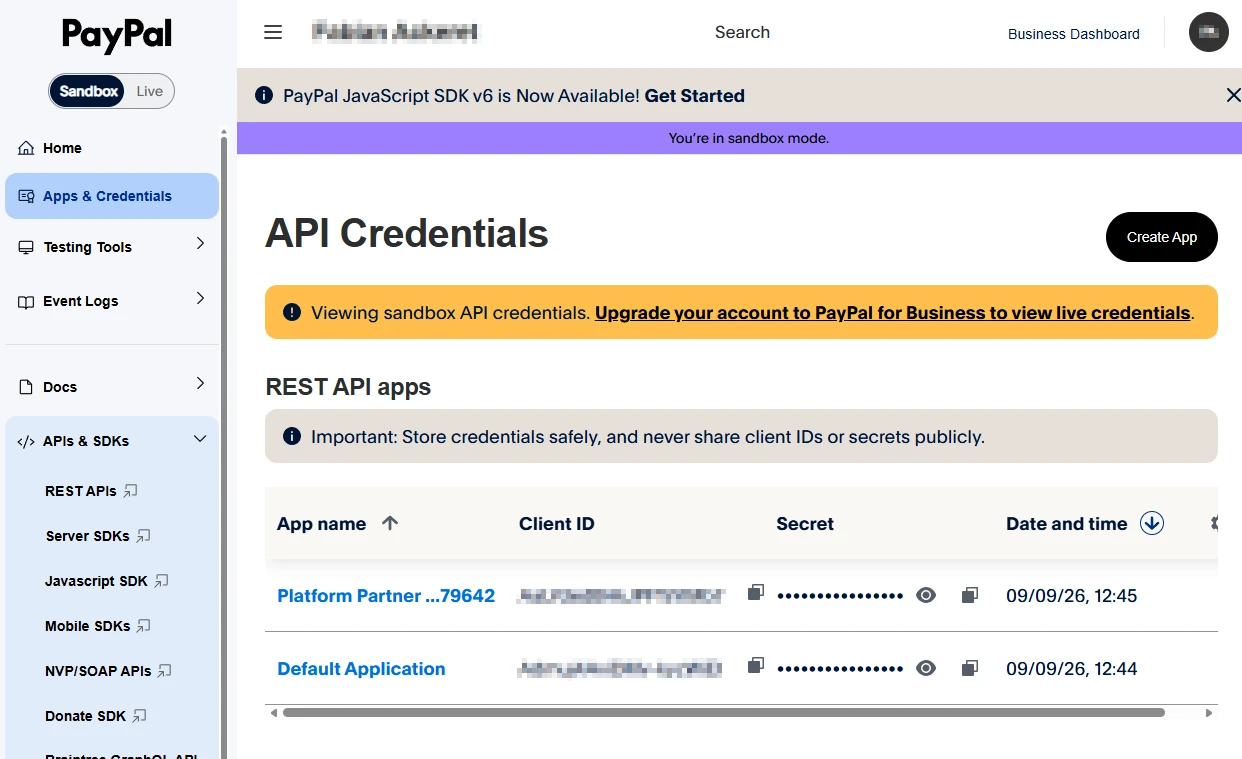
- Sign in at developer.paypal.com and open Apps & Credentials. The Payments tab in Opportunora links straight there, at the right tab for this deployment.
- Pick Sandbox or Live at the top. This has to match. A sandbox app fails against the live API and the reverse — and it fails as a flat authentication error, not as a helpful "wrong mode" message.
- Click Create App, name it, and open it.
- Copy the Client ID, then reveal and copy the Secret key.
- Still on the app's page, find its features and turn on Customer Disputes. Without it payments still work — the app simply cannot show a chargeback on the payment, because PayPal refuses the dispute lookup.
2. Paste the credentials
Open Settings → Payments, find the PayPal card, and fill in:
- Client ID
- Secret
Then click Connect PayPal. The app verifies the pair with PayPal immediately, by asking for an access token. If PayPal accepts them, they are encrypted and stored, and the card shows the last four characters of the client ID. The secret is never shown again anywhere.
If PayPal rejects them the card says PayPal did not accept those credentials. Nine times out of ten that is the Sandbox/Live tab — check step 1, point 2 before anything else.
3. Read the Webhooks row
After connecting, the card grows a Webhooks row. It is the one part of the PayPal setup people misread.
| Badge | What it means |
|---|---|
| Registered | PayPal reports each payment to this app as it happens. Nothing more to do. |
| Not registered | PayPal refused the registration. The reason it gave is printed next to the badge. Payments still work — they are confirmed when the customer returns to the pay page, and by the background sweep. |
When you connect, the app registers a webhook at PayPal for you, pointed at a per-connection address. It subscribes to eight events, covering approval, capture, refunds and disputes.
The usual reason for Not registered is that the app's address is not
HTTPS — on a laptop at http://localhost:3000, PayPal refuses outright. That
is fine for trying things out. Press Register webhook to retry after the
address changes, for example after a deployment moves to its real domain.
There is no signing secret to copy from PayPal. Deliveries are verified by calling PayPal back to check the signature, so there is nothing else to paste.
4. Test it with a sandbox buyer
While the deployment is in sandbox mode, nothing moves real money and the app says so in three places: a Payments sandbox badge in the top bar, a line on the Payments tab, and a Test mode: no money moves. banner on the pay page itself.
- Create an invoice, choose Pay online in section 3 · Payment, and send it.
- Open the pay link in a private window.
- Pay with a personal sandbox account from Testing Tools → Sandbox Accounts in the PayPal developer dashboard.
The invoice turns Paid, and its detail page shows PayPal's fee and the net amount.
Refunds, disputes and disconnecting
- Refunds happen at PayPal. There is no refund button in the app. Refund in the PayPal dashboard; the app records the result. A full refund sets the invoice to Refunded; a partial one leaves it Paid with the rest still due.
- Disputes appear on the payment as Disputed, if you turned on Customer Disputes in step 1. You answer them at PayPal.
- Disconnect asks first and tells you how many checkout pages are open — those stop working. Invoices keep their pay links and start working again if you reconnect. Payments already received stay recorded. Disconnect is blocked while a payment is still settling.
Without the webhook, what confirms a payment
Two things, both of which work whether or not the webhook registered:
- The customer's return. PayPal sends the customer back to the pay page, and the app captures the order at that moment.
- The sweep. A background pass reconciles anything left over — an approval the customer abandoned, a refund, a dispute. It runs in the worker process, so a deployment whose worker is not running never reconciles. That is the one real consequence of a missing webhook: things are confirmed later, not never.
Next
The pay link, what your client sees, and what the invoice does afterwards.