Documentation Start here
The dashboard and the shell
What the app puts in front of you first: the ranked work queue, the four money tiles, the sidebar, global search, notifications and the credit meter.
The dashboard answers one question: what should I do next. It ranks the open work by how close each item is to cash, so the top of the list is the thing worth doing now.
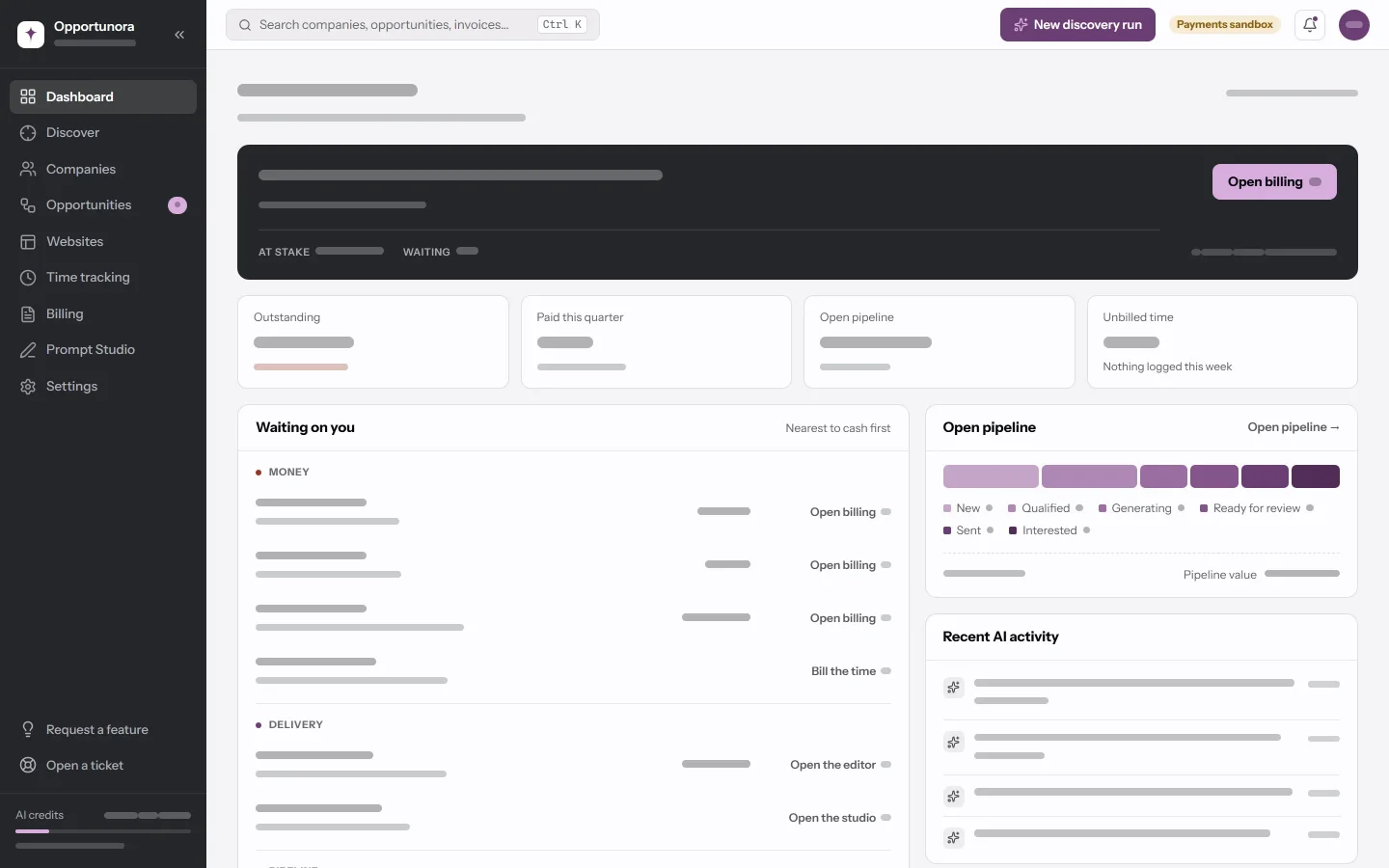
Waiting on you
The ranked queue, grouped by kind — money, delivery, pipeline — and ordered nearest to cash first. Each row carries the action it wants: Open billing, Bill the time, Open the editor, Open the studio, Open the deal.
It shows at most eight rows and collapses the rest into a N more waiting footer. When there is nothing in it, the heading says so rather than showing an empty box.
The four tiles
| Tile | What it counts |
|---|---|
| Outstanding | Invoices issued and not paid, with the past-due part called out. |
| Paid this quarter | Settled invoices in the current calendar quarter. |
| Open pipeline | The value of opportunities still in play. |
| Unbilled time | Tracked, billable, not yet on an invoice — over a rolling seven days. |
Below them: the pipeline by stage as a single bar, and Recent AI activity — what the discovery agent, the generator and the publisher have been doing. Recent AI activity is hidden below 768px.
The sidebar
| Item | What it is |
|---|---|
| Dashboard | This page. |
| Discover | Run a discovery and read its results. |
| Companies | Every business you know, lead or customer. |
| Opportunities | The deals, by stage. |
| Websites | Every website project, in every state. |
| Time tracking | Timers and entries, per client and project. |
| Billing | Invoices and payments. |
| Prompt Studio | The prompt every website is built from, and the language sites are written in. |
| Settings | Everything else. |
The rail collapses to icons on a desktop, and becomes a drawer below 768px.
Search
The box in the top bar searches companies, opportunities, websites, invoices, time entries and packages at once. Cmd/Ctrl + K focuses it.
- Two characters minimum. Nothing happens below that.
- Results are capped at 24, with a cap per kind, so an expected row may simply have been crowded out by closer matches.
- Escape closes the results; a second Escape clears the box.
- Time entries and packages have no detail page of their own, so those hits land on the relevant screen instead.
The top bar is not rendered inside the website editor. The editor carries its own navigation.
Notifications
The bell in the top bar collects what finished while you were elsewhere: a
generation done, a publish live, a publish failed, a payment received, a
dispute opened. Ages are shown bare — 3 hours, not 3 hours ago.
The credit meter
At the foot of the sidebar: used against the limit, what is left, and when it resets. It turns amber under 10% remaining and red at zero, and only becomes a link to Settings → Plan & usage at those points.
On a trial it counts down days left rather than naming a reset date. Note that the animated "something is running" dot follows your jobs, while the credits it sits next to are the whole workspace's — a colleague's run spends from the same allowance without animating your meter.
Approvals
Nothing client-facing happens without one. In this build the only approval that exists in the UI is Approve & publish for a website, and it is decided in two places: the Websites grid, and the editor toolbar. There is no separate approvals screen and no reject button — rejecting is possible only through the API.
Approving needs the Admin or PM role. Other roles see the button and get a permission error from it.
What the shell tells you about the deployment
Two badges are worth recognising:
- Payments sandbox in the top bar means online payments are in sandbox mode: connect sandbox accounts, and no money moves. Hidden below 768px.
- A Test badge on a payment row on an invoice means the same thing for that payment.
Next
The loop starts at Discover.