Documentation The loop
Track time
Run a timer or log hours by hand against a client, then bill them on an invoice. How the rate is chosen, what locks an entry, and what the checkboxes do not do.
Time tracking records work against a client, so hourly work — or the hours behind a fixed price you want to understand — can be billed on an invoice rather than remembered.
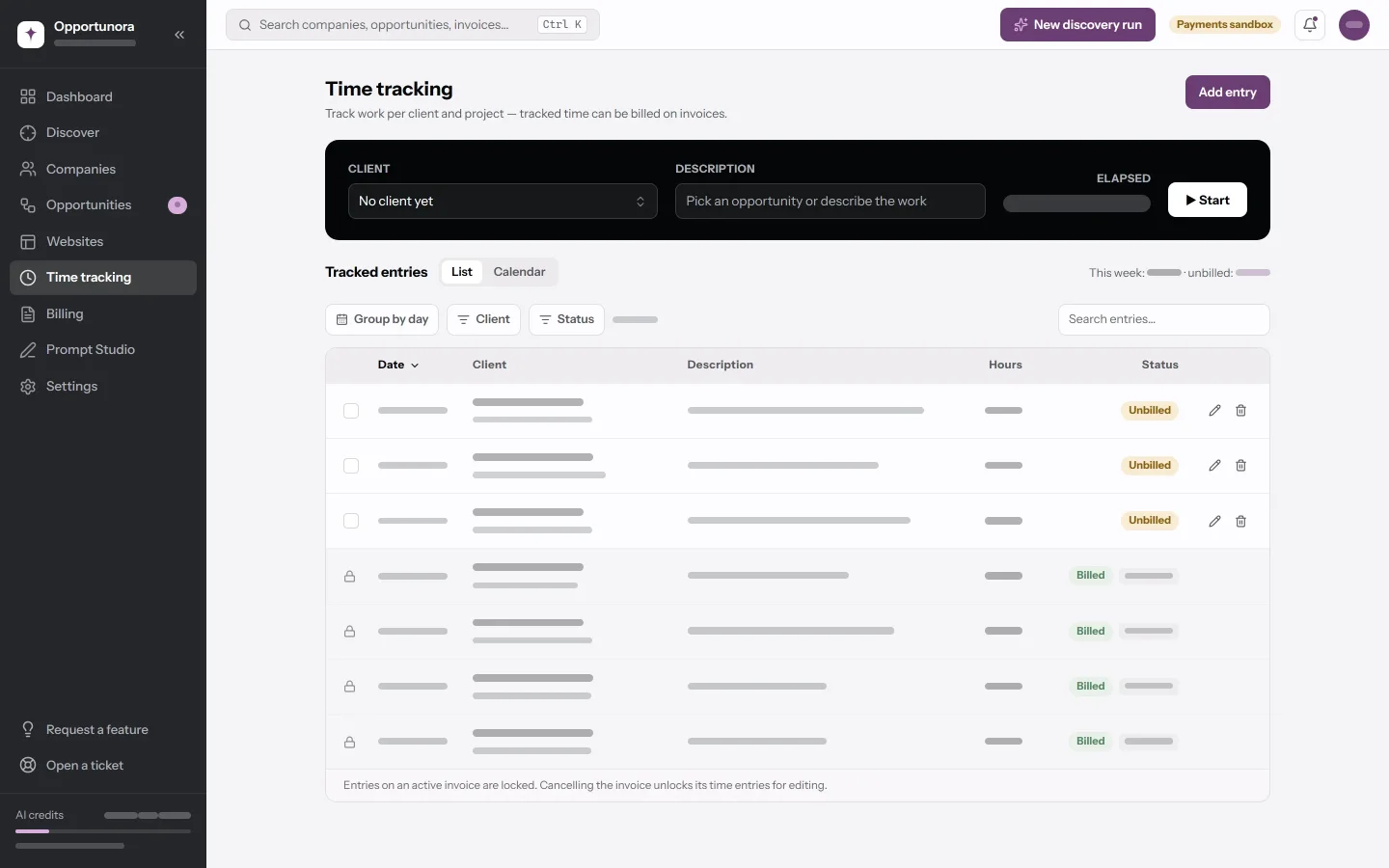
The timer
The dark card at the top:
- Pick a Client — any active company, not only customers. You can also start first and pick the client when you stop.
- Describe the work, or pick one of the client's open deals from the suggestions.
- ▶ Start.
The clock keeps going when you switch tabs or close the laptop, because it runs on timestamps rather than ticks. It also follows you to another browser: a timer started on one machine shows up on the other.
■ Stop opens Assign tracked time. Adjust the hours if you need to, then Save entry — or Discard time, which asks twice. The dialog will not close any other way, so a stopped run is never silently lost or silently kept.
A timer left running for more than 24 hours is discarded as a mistake. You can run one timer at a time.
Adding and editing by hand
Add entry takes a Date (future dates are allowed), Client, Project, Story, Description and Hours — more than zero and at most 24. Project lists the client's projects and stays empty until a client is picked. Projects are created through the API.
On the calendar, Add entry on a day fills that date in for you.
List and calendar
List is a table with search, filters for Client and Status (Unbilled or Billed), and Group by day. The line above it totals this week — Monday to Sunday — and what is unbilled.
Calendar is a month, Monday first. Each day shows its total, its number of entries, and a dot when some of it is unbilled. Pick a day to see its entries. Below 640px it becomes a list of the days that carry time.
Billing the time
Time is billed from the invoice, not from this screen.
To bill hours:
- Open Billing → New invoice and pick the client.
- Bill tracked time shows their unbilled billable hours by project, with the amount.
- Pick the groups to bill — whole projects, not single entries — optionally limited to Last month, Current month or a Custom period.
The invoice gets one line per hourly rate, not one per entry: the hours summed, the rate as the unit price, and the period as the description. The entry-by-entry detail prints as a time report on its own page of the PDF.
The rate is your rate on that project, set when the project was created, or the workspace Default hourly rate for anything with no project.
What locks an entry
| Lock | Why | How to undo it |
|---|---|---|
| Billed — a padlock instead of a checkbox | It is on an invoice that is not canceled. | Cancel the invoice and choose Reset time entries. |
| Locked period | It is dated on or before the workspace's block date. | Nothing in the app sets or clears this date; it is set by whoever runs the deployment. |
Cancelling an invoice asks what to do with its hours. Reset time entries is the one you almost always want. Keep time entries as billed leaves them tied to the canceled invoice for good, and they can never be billed again.
Billable or not
Every entry you create in the app is billable. There is no switch for it.
Next
What your client sees when they pay.